

Introduction
Why Integrate Google Merchant Center with GA4?
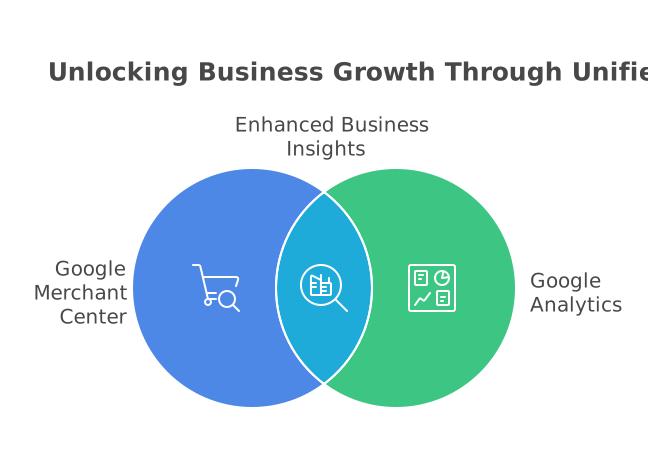
Connecting Google Merchant Center with Google Analytics GA4 gives e-commerce businesses a single, powerful dashboard. You can see product feed data, track conversion rates, and measure key performance indicators all in one place. Linking these platforms lets you use tools like Google Tag Manager, UTM parameters, and event tracking. This helps you track customer journeys and understand how people find and buy products. It also gives you better data for multi-channel attribution and tracking codes. GA4’s real-time analytics and segmentation features make it easy to spot trends in product performance metrics.
With this integration, you can see how shoppers interact across Google Ads, Search Console, and PPC advertising. You get a full picture of how your audience moves through funnels and makes purchases. This helps you improve your campaigns using dynamic remarketing and campaign tracking. Everything from clicks to revenue tracking becomes clearer and easier to follow.
Key Benefits of Platform Integration
Integrating Google Merchant Center with GA4 makes data-driven decisions simple. You can track events across channels and see which Google Ads or PPC campaigns are working best. Enhanced e-commerce reports let you view detailed performance metrics for each product. The dashboard gives you quick access to customer journey data, letting you spot which products drive conversions.
You can use GA4 to visualize data from all sources. This makes it easier to compare sales, look at multi-channel attribution, and track campaign performance. It also helps you set up audience segments for dynamic remarketing. Here is a quick list of what you can do:
| Feature | Benefit |
|---|---|
| Revenue Tracking | See which campaigns bring sales |
| Conversion Rate | Find out which products perform best |
| Event Tracking | Monitor every click and interaction |
| Segmentation | Target the right audience |
| Data Visualization | Spot trends quickly |
Setting the Stage for Success
Tracking codes, product feeds, and enhanced e-commerce tools are now easy to manage together. You can connect Google Ads, Google Search Console, and Google Merchant Center with GA4 for true omnichannel marketing. This platform integration gives you full control over campaign tracking and performance metrics. You will always know how your audience interacts with your store. GA4 makes real-time analytics and in-depth attribution reporting simple for everyone involved in your e-commerce business.
Prerequisites — What You Need Before You Start the Integration
Essential Accounts and Platform Access
To connect Google Merchant Center with GA4, you need a few key accounts. First, set up a Google Merchant Center account. This account is where your product feed lives. It sends your e-commerce products to Google for shopping ads and organic listings. Second, you need a GA4 property. GA4 helps you view event tracking, revenue tracking, and conversion rate data for your website. Make sure you have admin access to both platforms.
You also need access to Google Ads and Google Tag Manager. These tools help with PPC advertising, campaign tracking, and setting up tracking codes. Google Tag Manager makes adding UTM parameters easy. This helps with multi-channel attribution and performance metrics. Admin or editor roles are needed to integrate these accounts for better platform integration.
Website and Data Tracking Setup
Before you link Google Merchant Center with GA4, check your website’s tracking setup. GA4 uses enhanced e-commerce features to capture data on the customer journey. Make sure Google Tag Manager is installed on your website. This will help you set up event tracking, funnels, and data-driven decisions based on real-time analytics.
Check that your product feed is complete and accurate. Google Search Console can help you see if your website is indexed and ready for traffic analysis. Set up tracking codes and UTM parameters on your URLs. This step is important for campaign tracking and measuring attribution across different channels. Use these to improve your dashboards and data visualization in GA4.
Team Skills and Key Configurations
Your team should understand how to use dashboards, segmentation, and audience building in GA4. Knowing how to read key performance indicators, such as conversion rate and revenue tracking, is important. Your team should also know how to set up funnels and dynamic remarketing for omnichannel marketing.
Make sure product feed data matches what’s shown in Google Merchant Center and GA4. Double-check that all event tracking and performance metrics are active. This will help you make data-driven decisions and monitor the full customer journey from ad click to purchase.
Step-by-Step Guide — How to Connect Google Merchant Center to Google Analytics 4
Getting Ready for Integration
First, set up your Google Merchant Center with GA4 accounts. Make sure you have admin access on both platforms. Before you link, double-check your product feed in Merchant Center. Keep your product data up to date for accurate event tracking and revenue tracking. Next, in GA4, review your event tracking setup using Google Tag Manager. This step is key for tracking codes, enhanced e-commerce, and conversion rate metrics.
You should also review your UTM parameters and campaign tracking rules. Consistent UTM parameters help with multi-channel attribution and PPC advertising reports. Check your Google Search Console and dashboard for existing integrations. This helps you spot any issues early in the process.
Linking Google Merchant Center and GA4
Now, it’s time to connect Google Merchant Center with GA4. Start by opening your GA4 dashboard. Go to Admin and choose the GA4 property you want to link. Under “Product Links,” look for “Google Merchant Center Links.” Click “Link,” then pick your Merchant Center account. Enable auto-tagging so GA4 can track traffic, revenue, and funnels from your product feed.
In Google Merchant Center, use the “Tools” menu and select “Linked Accounts.” Find your GA4 property and confirm the link. Check for a verification status to make sure the integration worked. Repeat this process if you have multiple accounts, since GA4 supports platform integration with several Merchant Center accounts.
Optimizing Data and Using Advanced Features
After linking, monitor your performance metrics using the GA4 dashboard. Watch key performance indicators like conversion rate, audience, and event tracking data. Use segmentation tools for better funnel and attribution analysis. Real-time analytics and data visualization help reveal which products and campaigns perform best.
Try dynamic remarketing by syncing Google Ads and Merchant Center product feeds. This helps you reach the right audience and improve omnichannel marketing results. Set up custom dashboards and reports to track customer journey, campaign tracking, and revenue tracking. Review your tracking codes and funnels often, making data-driven decisions to boost sales and marketing success.
Understanding the Data Flow — What Gets Shared Between Platforms
Key Data Streams Between Google Merchant Center and GA4
When you link Google Merchant Center with GA4, the platforms start sharing important data. Product feed details, user interactions, and event tracking data move between the systems. This helps build a full picture of how customers find and buy products.
Clicks, impressions, and product views from Shopping ads flow from Google Merchant Center to GA4. GA4 also tracks add-to-carts, purchases, and revenue tracking events. These events use tracking codes and UTM parameters to show which channels—like Google Ads or PPC advertising—drive results. Enhanced e-commerce tracking gives more detailed reports on sales performance, conversion rate, and customer journey.
Examples of Shared Metrics and Events
The integration supports many key performance indicators (KPIs) that matter for e-commerce. Here are some examples:
| Data Type | Where Tracked | Purpose |
|---|---|---|
| Product Clicks | GA4/Merchant | Measure engagement |
| Impressions | Merchant | Track ad visibility |
| Revenue | GA4 | Revenue tracking, ROAS |
| Add-To-Cart | GA4 | Funnel and conversion tracking |
| Purchase Events | GA4/Merchant | Track final sales |
| UTM Parameters | GA4 | Campaign tracking, attribution |
Data flows both ways: purchases in GA4 help inform reporting in Merchant Center. At the same time, product feed and listing performance from Merchant Center enters GA4 dashboards for real-time analytics and data visualization.
How Data Improves Decisions and Marketing
Shared data makes campaign tracking and multi-channel attribution much easier. Businesses can see which channels and products drive the best results by tracking performance metrics from all sources. Segmentation in GA4 lets you build target audiences and use dynamic remarketing to reach users who viewed or added products to cart but did not buy.
With Google Tag Manager, you can set up custom event tracking and funnels for more advanced analysis. The combined data powers dashboards that show trends in omnichannel marketing and customer journeys. This makes it easier to make data-driven decisions, improve conversion rates, and optimize the overall marketing strategy.
Post-Integration Setup — Making Sure Your Tracking Is Accurate
Verifying Tracking Codes and Data Flows
After connecting Google Merchant Center with GA4, check that your tracking codes are firing on every product page. Use Google Tag Manager to confirm event tracking works for key actions like product views, adds to cart, and purchases. Make sure the Google Ads and enhanced e-commerce tracking tags are set up. Test real-time analytics in GA4 to see if revenue tracking data appears when you complete a test transaction. This helps catch errors before you launch new campaigns.
Review your site’s product feed in Merchant Center to confirm all product data lines up with what appears in GA4 reports. Use Google Search Console to spot crawl errors or missing product links. If tracking codes or feeds show mismatches, fix them right away to avoid losing performance metrics or breaking attribution.
Setting Up Attribution, Campaign Tracking, and Segmentation
Enable auto-tagging in Google Merchant Center and Google Ads to ensure clean multi-channel attribution. For other channels, use UTM parameters for accurate campaign tracking. In GA4, build funnels that reflect the customer journey. This shows where people drop off and what drives conversion rate improvements.
Group your audience in GA4 using segmentation. Track key performance indicators like revenue, clicks, and product page views. Create a dashboard for quick data visualization. This helps compare PPC advertising, organic, and referral sources. Segmenting your audience gives better insight for dynamic remarketing and omnichannel marketing.
Optimizing Data for Decisions and Reporting
Check your performance metrics often. Set up custom reports in GA4 to follow product feed performance, sales funnels, and conversion rates. Use dashboard widgets for at-a-glance data on campaign tracking and audience segments.
Compare your GA4 data with Google Ads and Google Search Console to see how each platform helps drive sales. This helps with data-driven decisions and boosts your marketing impact. Update your tracking codes and event tracking if you find missing or double-counted transactions. This keeps your reporting clear and accurate across all channels.
Advanced Analytics — What to Do With Your Integrated Data
Unlocking Insights with GA4 and Google Merchant Center
When you connect Google Merchant Center with GA4, you boost your analytics power. All your product feed data and event tracking work together in one place. You can set up dashboards to watch key performance indicators (KPIs) like conversion rate, revenue tracking, and traffic sources from Google Ads and organic shopping. This helps you see what’s working or not in your product listings.
Use segmentation in GA4 to break down your audience. You can track how different groups move through your sales funnels. GA4 makes it easy to spot trends using real-time analytics and data visualization tools. This means you can make fast, data-driven decisions to improve your campaigns.
Optimizing Campaigns with Multi-Channel Attribution
Integrating Google Merchant Center with GA4 helps you see how users found your products. Set up UTM parameters in your Google Ads, PPC advertising, and email campaigns. Track these with GA4 to learn which channels get more clicks and sales. Multi-channel attribution lets you see the full customer journey, not just the last click.
You can use Google Tag Manager to manage tracking codes across your platforms. This keeps your data clean and helps improve your campaign tracking. With enhanced e-commerce features in GA4, you can tie revenue tracking and attribution to each campaign. Build custom reports to compare performance metrics across channels.
Taking Action with Data-Driven Decisions
Once you have all your data in one place, you can use platform integration to run omnichannel marketing. Make dashboards to watch performance metrics like ROI and conversion rate. Segment your audience to target high-value groups with dynamic remarketing.
Create tables in GA4 to compare sales by product, channel, or campaign. Use Google Search Console data together with your GA4 data for deeper insights. Real-time analytics let you spot issues fast and find new chances to grow. This helps you make changes quickly and improve both your ads and your product listings.
Reporting and Dashboards — Turning Integrated Data Into Business Decisions
Building Dashboards for E-Commerce Insights
Linking Google Merchant Center with GA4 gives you access to more detailed dashboards. These dashboards combine performance metrics from both platforms. You can see product feed data, revenue tracking, and real-time analytics in one place. Use Google Tag Manager to set up event tracking and track conversion rate, funnels, and key performance indicators (KPIs) easily.
Create custom dashboards in GA4 to monitor sales, campaign tracking, and audience actions. Use segmentation to break down the customer journey and see which products drive conversions. These dashboards help you spot trends, track PPC advertising results, and understand multi-channel attribution. Combine these views to get a full picture of how your marketing works on Google Ads, organic, and other channels.
Using Integrated Data for Better Decisions
Integrated data lets you make smarter, data-driven decisions. With Google Merchant Center and GA4 working together, you see the full customer journey—from first click to purchase. Attribution reporting tells you which marketing channels work best. This helps you focus on what drives revenue and improve omnichannel marketing results.
Add UTM parameters to your links for better campaign tracking. Use Google Search Console with GA4 to see where your traffic comes from. Analyze product performance and use dynamic remarketing to reach high-value audiences. You can adjust bids, update product listings, and plan new campaigns using the insights from the dashboards.
Practical Visualization for E-Commerce Teams
GA4 offers data visualization tools to help teams understand what is happening. You can use charts and tables to show how different products or campaigns perform. Build funnels to see where customers drop off and which steps lead to more sales. The table below shows some useful dashboard elements:
| Metric | What It Shows |
|---|---|
| Product Feed Clicks | Popular products |
| Conversion Rate | Sales performance |
| PPC Campaign Revenue | Ad spend results |
| Multi-Channel Attribution | Channel impact on purchases |
| Key Performance Indicators | Main business goals |
These reports make it easy for any team member to follow trends, check results, and take action. Use tracking codes and platform integration to keep all your data in one place.
Multi-Channel Attribution and Customer Journey Analysis
Understanding Multi-Channel Attribution in GA4
Multi-channel attribution in GA4 is key for tracking which platforms drive sales. Google Merchant Center with GA4 lets you see if revenue comes from Google Ads, organic search, or social media. With UTM parameters, Google Tag Manager, and tracking codes, each source is recorded. This helps you measure conversion rate from pay-per-click (PPC) advertising, email, and other channels. You can find out if a customer clicked a Google Shopping ad, visited the site, then bought from a Google Ads remarketing campaign.
GA4 also uses event tracking for actions like add-to-cart and purchase. These events help with enhanced e-commerce reporting. The ability to view these touchpoints in one dashboard makes it easier to analyze performance metrics. You can use the dashboard and custom funnels to track full customer journeys and identify which steps lead to sales.
Analyzing the Customer Journey and Audience Segmentation
With GA4 and Google Merchant Center integration, you can visualize the customer journey. Real-time analytics show how visitors move from product feed to purchase. Segmenting the audience using GA4 allows you to see which groups respond best to promotions. This helps in making data-driven decisions for omnichannel marketing.
Table: Example of Customer Journey Touchpoints
| Touchpoint | Platform | Event Recorded |
|---|---|---|
| Product Impression | Google Merchant Feed | View Item |
| Ad Click | Google Ads | Click Event |
| Website Visit | Your E-commerce Site | Session Start |
| Product Add to Cart | Website | Add-to-Cart Event |
| Purchase | Website | Purchase Event |
Using segmentation in GA4, you can target dynamic remarketing through Google Ads. Set up audiences in your dashboard. Use performance metrics to adjust your strategy. You can find your best-performing products and campaigns by channel.
Reporting and Visualization for Data-Driven Decisions
GA4 helps you create reports based on key performance indicators (KPIs) like revenue tracking, conversion rate, and engagement. You can connect Google Search Console for more insights. Dashboards and data visualization tools make it easy to spot trends across channels. These reports help optimize campaign tracking, refine product feeds, and enhance e-commerce efforts.
Performance data supports quick changes in marketing strategy. With platform integration, you can track all campaigns in one place. This makes it easy to monitor results, compare channels, and improve return on ad spend (ROAS). GA4 and Google Merchant Center together support smarter, data-driven decisions for your store.
Leveraging the Integration for Google Ads and PPC Campaign Performance
Setting Up Campaign Tracking and Revenue Measurement
Connecting Google Merchant Center with GA4 helps track Google Ads and PPC advertising more closely. Use UTM parameters in your product feed links to see where your traffic comes from. GA4 captures these details, making it easier to view which ads lead to clicks and sales. Google Tag Manager can add tracking codes to your site, which helps with event tracking like add-to-cart, checkout, or purchases. This setup lets you measure revenue tracking and other key performance indicators right in your dashboard.
With enhanced e-commerce enabled, GA4 tracks product views, cart actions, and completed purchases. You can see conversion rates for every Google Ads campaign. Use real-time analytics to watch actions as they happen. This data helps you find out which products perform well and which campaigns need an update. For multi-channel attribution, GA4 shows if sales came from PPC, social, or organic channels.
Analyzing Performance Metrics and Customer Journeys
Performance metrics from the integration show how users move through your site. GA4 funnels let you see each step in the customer journey, from ad click to final purchase. Make use of data visualization tools in your dashboard to spot trends. By segmenting audiences, you can track behaviors for different groups, like new or returning shoppers.
With platform integration, all your data from Google Ads, Google Search Console, and Merchant Center comes together. This makes omnichannel marketing analysis simple. See which campaigns have high conversion rates or which products need better ads. Multi-channel attribution helps you credit the right source for each sale.
Optimizing PPC Campaigns with Data-Driven Insights
Use segmentation to build custom audiences for dynamic remarketing. Show ads to people based on what they viewed or bought. GA4 lets you track these actions and connect data across channels. Adjust your PPC campaigns using insights from enhanced e-commerce reports.
Build custom reports and dashboards to keep an eye on campaign tracking and product feed performance. Look for drops in conversion rate or spikes in clicks to spot problems fast. Regularly review your attribution, revenue tracking, and key funnels to make data-driven decisions for better ad performance and sales growth.
Common Mistakes to Avoid When Integrating Merchant Center With Google Analytics
Ignoring Proper Linking and Tagging
One common mistake is not linking Google Merchant Center with GA4 correctly. Missing this step stops full data flow between your product feed, enhanced e-commerce, and key performance indicators. Many users forget to enable auto-tagging or set up tracking codes. Without proper UTM parameters or Google Tag Manager, you may miss important event tracking. Always check if your tracking codes are working. Make sure the integration connects to your dashboard so all funnels and performance metrics show up.
Failing to use UTM parameters can lead to lost campaign tracking data. It can also make it hard to measure conversion rate or revenue tracking across Google Ads, PPC advertising, and other channels. Double-check every link and tag for multi-channel attribution and platform integration.
Overlooking Data Quality and Segmentation
Another mistake is not checking data quality after setting up GA4 with Google Merchant Center. Bad data can cause wrong insights. For example, not segmenting your audience means you can’t see real differences in performance. This leads to less useful data-driven decisions. Use segmentation to group your customers by source, device, or campaign for better analysis.
Businesses sometimes forget to connect GA4 with Google Search Console. This leaves out key performance indicators about organic search performance. Missing this step can weaken your data visualization and real-time analytics. Always use dashboards and reports to spot errors in customer journey tracking and event tracking.
Not Using All Features and Channels
Many ignore dynamic remarketing or multi-channel attribution settings in GA4. This makes it hard to follow customers across channels for omnichannel marketing. Not setting up the right product feed or enhanced e-commerce tracking can hide important performance metrics. Make sure all products and campaigns are tracked across Google Ads, Google Merchant Center, and Google Analytics.
Skipping regular checks on funnels, dashboards, and attribution reports can lead to missed trends. Use GA4’s real-time analytics to keep your data fresh. This helps you quickly react to changes in your audience or campaign tracking. Always update your tracking codes and monitor your platform integration to keep data accurate.
Conclusion and Best Practices
Maximizing Value from Google Merchant Center with GA4
Integrating Google Merchant Center with GA4 is key for eCommerce businesses. This platform integration helps connect your product feed, Google Ads, and other tools for a complete view. When you link GA4 with Google Merchant Center, you can track conversion rates, revenue, and key performance indicators (KPIs) easily. Using dashboards and data visualization tools in GA4 offers clear insights into your funnels, audience, and campaign tracking.
By using UTM parameters, Google Tag Manager, and tracking codes, you can make sure all your channels are measured. Multi-channel attribution in GA4 makes it easy to see which paths lead to sales. You can boost your PPC advertising and dynamic remarketing, too, by targeting audiences based on real-time analytics and event tracking.
Best Practices for Accurate Tracking and Reporting
To get the best results, always check that event tracking and UTM parameters are set up properly. Make sure your Google Tag Manager and tracking codes work on every landing page. Use enhanced e-commerce features in GA4 to monitor product feed performance and conversion rate changes.
Regularly review your funnels and dashboards to spot trends. Segmentation helps you understand different groups in your audience. Check your performance metrics often to make data-driven decisions for future campaigns. Google Search Console can be linked for more insights into customer journeys.
Tips for Ongoing Optimization
Keep your product feed updated. Check your Google Merchant Center with GA4 connection often to avoid data issues. Use multi-channel attribution and campaign tracking to spot which marketing channels drive sales. Monitor key events like add-to-carts and purchases to improve conversion rate and revenue tracking.
Use real-time analytics to spot problems fast. Test different PPC advertising strategies and measure results in GA4. Build dashboards to review performance metrics at a glance. These steps help your business grow and keep your omnichannel marketing strong.
FAQ
Why should I integrate Google Merchant Center with GA4?
Integrating Google Merchant Center with GA4 provides a unified dashboard for tracking product feed data, conversion rates, and key performance indicators, allowing you to monitor customer journeys, multi-channel attribution, and campaign performance more effectively.
What are the key benefits of linking Google Merchant Center and GA4?
Benefits include simplified data-driven decision-making, detailed enhanced e-commerce reports, revenue and conversion tracking, event tracking, audience segmentation, and improved data visualization for spotting trends quickly.
What accounts and access do I need to connect Google Merchant Center with GA4?
You need a Google Merchant Center account, a GA4 property with admin access, and access to Google Ads and Google Tag Manager with admin or editor roles to enable PPC advertising, tracking codes, and campaign management.
What website and data tracking setups are required before integration?
Ensure Google Tag Manager is installed, product feeds are complete and accurate, Google Search Console confirms your site is indexed, and tracking codes with UTM parameters are properly configured for campaign tracking and attribution.
What team skills and configurations are necessary for successful integration?
Your team should be familiar with GA4 dashboards, segmentation, audience building, KPI interpretation, funnel setup, dynamic remarketing, and ensuring product feed data and event tracking align correctly across platforms.
How do I link Google Merchant Center with GA4?
In GA4, go to Admin > Product Links > Google Merchant Center Links, select your Merchant Center account, and enable auto-tagging. Then, in Google Merchant Center, link your GA4 property via the Tools menu under Linked Accounts and verify the connection.
What data streams are shared between Google Merchant Center and GA4?
Shared data includes product feed details, user interactions like clicks and impressions, add-to-cart and purchase events, revenue tracking, and UTM parameters for campaign attribution.
Which key metrics and events are tracked through this integration?
Metrics include product clicks, impressions, revenue, add-to-cart events, purchase events, and UTM parameters, tracked across GA4 and Google Merchant Center for comprehensive e-commerce insights.
How does integrating these platforms improve marketing decisions?
It enables easier campaign tracking, multi-channel attribution, audience segmentation, dynamic remarketing, and the creation of custom reports and dashboards to optimize conversion rates and marketing strategies.
How can I verify tracking codes and ensure data flows correctly?
Use Google Tag Manager to confirm event tracking on product pages, test real-time analytics in GA4 with test transactions, review product feed accuracy in Merchant Center, and check Google Search Console for crawl errors or missing links.
What are best practices for attribution, campaign tracking, and segmentation?
Enable auto-tagging in Google Ads and Merchant Center, use consistent UTM parameters, build funnels in GA4 to track customer journeys, segment audiences for targeted marketing, and create dashboards for performance visualization.
How do I optimize data for better reporting and decision-making?
Regularly monitor performance metrics, set up custom GA4 reports and dashboards, compare data across Google Ads and Search Console, and update tracking codes to maintain accurate and clear reporting.
What role does multi-channel attribution play in GA4 with Google Merchant Center?
It helps track sales across various platforms and channels, attributing conversions accurately beyond last-click models by using UTM parameters, event tracking, and integrated dashboards.
How can I analyze the customer journey and audience segmentation?
Use GA4’s real-time analytics and segmentation features to visualize touchpoints from product impression to purchase, identify audience groups, and target dynamic remarketing campaigns effectively.
What common mistakes should I avoid during integration?
Avoid failing to link accounts properly, neglecting auto-tagging, missing UTM parameters, poor data quality checks, ignoring segmentation and Google Search Console integration, and underutilizing dynamic remarketing or enhanced e-commerce features.
How do dashboards help e-commerce teams using GA4 and Google Merchant Center?
Dashboards combine performance metrics from both platforms, showing product feed data, conversion rates, campaign tracking, and multi-channel attribution, enabling teams to spot trends and make informed marketing decisions.
What are the best practices for accurate tracking and reporting?
Ensure event tracking and UTM parameters are correctly set, verify Google Tag Manager and tracking codes on all landing pages, use enhanced e-commerce features, and regularly review funnels and dashboards for data-driven decisions.
How can I continually optimize my integration setup?
Keep product feeds updated, frequently review connections and data quality, monitor key events like add-to-cart and purchases, use real-time analytics to identify issues, and test PPC strategies while measuring results in GA4.