

What an Executive GA4 Dashboard Actually Is (and Why It’s Not Just a Smaller Report)
The Purpose of a Custom Executive GA4 Dashboard
A custom executive GA4 dashboard is more than just a trimmed-down report. It is a tool built to help leaders quickly see the health of their business. Traditional GA4 reports show lots of data, but it can be hard to find what really matters for decision-making. A custom executive GA4 dashboard solves this by choosing only the most important metrics for business leaders.
The dashboard brings together data from many sources in one place. It gives a clear summary, showing things like total users, key traffic sources, conversions, and sales. These are the numbers leaders check to measure success. By focusing on these, the dashboard avoids clutter and confusion.
How It Differs from Regular Reports
Standard reports in GA4 list details about website visits, traffic sources, and user behavior. They often require digging through layers of menus and charts. A custom executive GA4 dashboard, on the other hand, is designed for speed and clarity.
Here are some clear differences:
- Focus: The dashboard highlights high-level KPIs, not every possible metric.
- Simplicity: It uses clear visuals like summary tables and graphs for quick understanding.
- Customization: It can be tailored to show the exact data each executive needs.
This focus lets leaders spot trends and issues fast. The dashboard answers big questions without the need for deep analysis every time.
Why Executives Need Dashboards, Not Just Reports
Executives need to make fast choices. A custom executive GA4 dashboard gives them snapshots of business performance at a glance. Instead of spending time reading long reports, they can see all important numbers on one page.
Check this example table below:
| Metric | Value This Month |
|---|---|
| Total Users | 15,000 |
| New Leads | 230 |
| Conversion Rate | 3.2% |
| Revenue | $48,000 |
Having this data ready means leaders can act quickly. The dashboard shows if strategies work or need changes. It helps guide meetings and planning sessions, ensuring focus stays on what drives results.
Start with Decisions, Not Charts — Defining KPIs That Drive Action
Focus on Business Decisions First
Before adding charts to a custom executive GA4 dashboard, think about decisions leaders must make. Charts should help answer big questions. For example, should more money go into ads? Which products are growing? Each report or chart should help answer a business question. If a chart does not help make a choice, it does not belong on the dashboard.
Start by talking with your team or leadership. Ask what decisions they make every week or month. Write these down. Turn them into key questions like: Is our website bringing in more leads this month? Are our best customers coming from social media or search?
Turn Decisions Into KPIs
Each key business question needs a simple metric, called a KPI. KPIs are numbers that show if you are moving toward your goals. A good custom executive GA4 dashboard has only a few KPIs. Too many numbers cause confusion.
Common KPIs for an executive team include:
- Total users (Is traffic growing?)
- Leads or conversions (Are we winning new business?)
- Revenue or sales (How much money did we make?)
- Top sources (Where are people coming from?)
- Engagement rate (Are visitors staying on the site?)
Pick KPIs that fit your business. For an online store, revenue and average order value matter. For a service firm, leads and qualified form fills are key.
Linking KPIs to Dashboard Design
Once you pick KPIs, design the GA4 dashboard so leaders see answers fast. Put the most important KPIs at the top. Use clear titles like “New Leads This Month” or “Top Traffic Sources.” Add simple tables or scorecards. Avoid extra details that slow decisions. For example, a table showing top channels with lead numbers helps leaders spot what works best.
Keep the look clean. Use charts that are easy to read: bar charts, line graphs, and tables. The goal is fast insights, not showing every possible number. A strong custom executive GA4 dashboard helps leaders make choices, not just look at data.
Choosing Your Build Method — Native GA4 vs. Data Studio vs. BigQuery
Native GA4 Dashboards: Quick and Basic
A custom executive GA4 dashboard can be built right inside Google Analytics 4. This method is fast and easy. You use built-in reports and collections to show basic metrics like users, source, and revenue. The dashboard is always live, so business leaders see the latest numbers.
But native GA4 dashboards have limits. You cannot blend data from many sources. Custom calculations are harder to do. Visualizations are simple. This method is best for teams who need a quick look at core metrics and do not need deep analysis or data blending.
Data Studio: Flexible and Visual
For more options, use Google Data Studio. Here, you connect your GA4 property to build a custom executive GA4 dashboard with colorful charts and tables. Data Studio lets you pull in data from other platforms too, not just GA4. This makes it easy to see website, ad, and sales data all in one dashboard.
You can customize how numbers show, set filters, and build reports that fit different leader needs. Data Studio dashboards are shareable and can be sent by email. But, the data is not always live. It may lag by a few hours. Data Studio is best for teams who want flexible, detailed dashboards and like visuals.
BigQuery: Power and Custom Analysis
BigQuery is Google’s data warehouse. It is for advanced teams who want to build a custom executive GA4 dashboard by using raw GA4 data. You can join GA4 with other data, create custom metrics, and use SQL for deep analysis. This is best if you have lots of data or want very custom reports.
BigQuery dashboards take more time to set up and need technical skills. You usually connect BigQuery to Data Studio or another BI tool to show the final dashboard. This method is powerful, but not simple. It fits data teams that want full control over every metric and do not mind extra setup work.
| Method | Speed | Custom Metrics | Data Sources | Visuals | Skills Needed |
|---|---|---|---|---|---|
| Native GA4 | Fast | Low | One (GA4) | Simple | Low |
| Data Studio | Med | Medium | Many | Strong | Medium |
| BigQuery | Slow | High | Many | Advanced* | High |
| *Connected to dashboard tools |
Building an Executive Dashboard Inside Native GA4 (Step by Step)
Getting Started with Your Custom Executive GA4 Dashboard
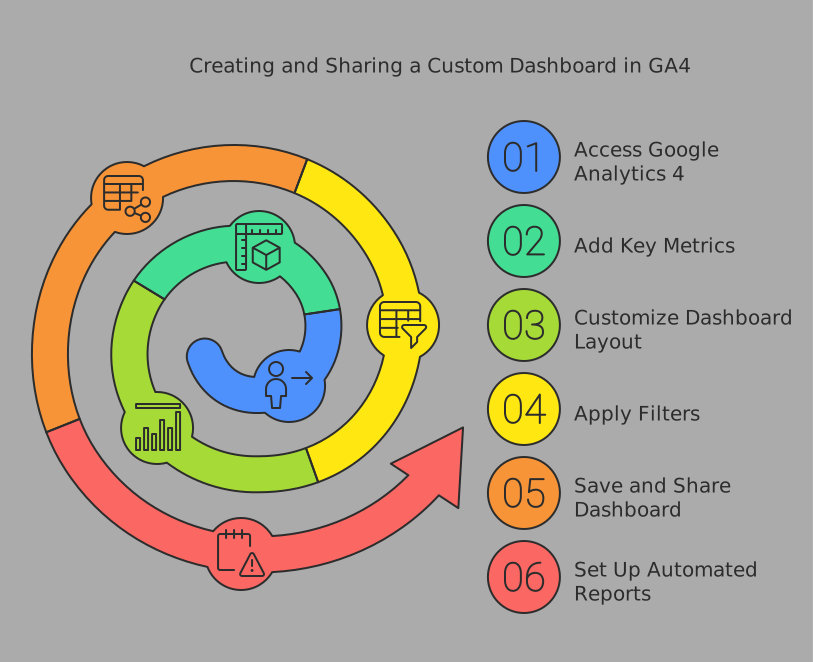
Start by logging into your GA4 property. Click on “Reports” in the left menu. Next, go to the “Library” at the bottom of the Reports section. Here, you can see all your current reports, collections, and dashboards. Click on “Create new collection” and pick the blank option. Name this collection something clear, like “Executive Summary” or “Leadership Dashboard.” This will be your custom executive GA4 dashboard where you add important reports for easy access.
To keep your dashboard focused, only add the most valuable reports. Take the “Reports snapshot” for a quick view of overall performance. Add the “Traffic acquisition” report to show where your users come from. For sales or leads, include reports like “Conversions” or “Ecommerce purchases.” Arrange them in the order that helps leaders scan data fast. Save and publish your collection when ready.
Choosing the Right Metrics and Reports
A strong custom executive GA4 dashboard answers four main questions:
- Are we growing? (Total users, sessions, engagement)
- Where do our best users come from? (Traffic sources)
- Are we getting leads or sales? (Conversions)
- How much revenue are we earning? (Ecommerce data)
Pick reports that give fast answers to these questions. Rename them with simple, clear titles. For example, change “Traffic acquisition” to “Top Traffic Sources.” This makes your custom executive GA4 dashboard easy to read. Always set date comparisons so leaders can see trends.
Use the “Share” button to schedule regular email updates. This keeps the leadership team informed without logging in each time. Only include the key 4-5 reports to avoid clutter and confusion.
Tips for an Effective Custom Executive GA4 Dashboard
- Use short, clear report names
- Limit to the most important metrics
- Arrange reports by the flow of business questions
- Use date filters for context
- Schedule automated emails for updates
| Metric | Why It Matters |
|---|---|
| Total Users | Tracks growth |
| Traffic Source | Finds best channels |
| Conversions/Leads | Measures business value |
| Revenue or Purchases | Shows sales performance |
Building a custom executive GA4 dashboard helps leaders focus on what matters most. It saves time and surfaces insights fast.
Building a Shareable Executive Dashboard in Data Studio
Why Use Data Studio for a Custom Executive GA4 Dashboard
Google Data Studio is a free tool that helps you turn your Google Analytics 4 data into easy-to-read reports. It connects directly to GA4, so you do not need to download any files. With Data Studio, you can make a custom executive GA4 dashboard that is simple to share and understand. This dashboard gives business leaders a quick way to see the most important numbers without reading long reports.
Data Studio also allows users to share dashboards with anyone, even if they do not have a Google Analytics account. This feature is handy for executive teams who want clear updates. Sharing keeps everyone on the same page and helps teams make faster decisions.
Key Steps to Build a Custom Executive GA4 Dashboard
To create your custom executive GA4 dashboard in Data Studio, follow these steps:
- Connect Data Studio to your GA4 property using the built-in GA4 connector.
- Choose the most important metrics, like total users, sessions, and revenue.
- Use charts and tables to show data in a simple way. For example, make a bar chart for traffic sources or a table for top conversions.
- Add filters, like date ranges or traffic type, so leaders can focus on what matters most.
- Give clear titles to every chart and section. This helps executives know what each part means.
Here is an example layout for your dashboard:
| Section | Metrics to Include |
|---|---|
| Performance Overview | Users, Sessions, Engagement Rate |
| Acquisition Channels | Source, Medium, Top Channels |
| Conversions & Leads | Sign-ups, Form Submissions |
| Revenue (if eCommerce) | Revenue, Transactions |
Sharing and Managing the Dashboard
Sharing your custom executive GA4 dashboard is easy. Click the “Share” button in Data Studio and choose who can view or edit the dashboard. You can also set up scheduled email delivery so executives get the latest data every week.
When you update your dashboard, changes show up for everyone right away. You do not have to resend new files or links. This keeps the data fresh and makes teamwork easier. You can also add comments to explain changes or highlight important trends for the leadership team.
Designing for Actionable Insight, Not Just Visualization
Focus on Clear, Relevant Metrics
A custom executive GA4 dashboard should highlight only the most important data. Leaders need quick answers, not long reports. First, choose metrics that directly show business health: user growth, conversion rates, and revenue. Keep the dashboard simple, with 4–5 main reports. Too much data can distract from the real story. Use clear labels and titles so everyone understands what they see. Show changes and trends over time to help spot problems or wins quickly.
Turning Data Into Decisions
An executive dashboard must do more than just display numbers. It needs to help teams take action. Use scorecards, tables, and charts that compare periods (like this month vs. last month). Add notes to explain what changed and why. For example, if a metric drops, the dashboard should point to possible causes, like fewer visitors from a certain channel. This way, leaders can make fast decisions. Group data by channel, campaign, or product to see what’s working best.
Making Insights Easy to Access
The custom executive GA4 dashboard should help users get insights without needing a data analyst. Schedule regular email summaries with key findings. Allow leaders to filter and segment the data right in the dashboard, like by date or traffic source. Use color coding and simple graphs to highlight what’s important. Add quick tips or instructions so new users can understand the dashboard fast. All these features help teams move from seeing data to acting on it.
Making the Dashboard Proactive — Alerts, Anomaly Detection, and AI Insights
Setting Up Automated Alerts in Your Custom Executive GA4 Dashboard
A custom executive GA4 dashboard should not only show current numbers but also warn you when something important happens. Automated alerts help leaders react quickly. In Google Analytics 4, you can set up alerts to watch for big changes in traffic or conversions. If your website suddenly gets more or fewer visitors, you will get an email or in-app message. This helps you act fast, like fixing a broken link or boosting a successful campaign.
To create alerts, go to the GA4 dashboard, click on “Configure,” and then select “Custom Alerts.” Choose the metric you want to track, like users or goal completions. Set the conditions, such as “increase by 30%” or “drop below 100.” Pick who gets the alert. This keeps the team informed without needing to check the dashboard all day.
Using Anomaly Detection to Spot Trends Early
Anomaly detection is a smart way to spot unusual patterns. The custom executive GA4 dashboard can use this feature to find numbers that look different than normal. For example, if your sales usually grow by 10% each week but suddenly stop growing, the dashboard will highlight this. This helps leaders know right away if something is wrong or if a new trend is starting.
Google Analytics 4 includes built-in machine learning for anomaly detection. In “Explore” reports, you can add anomaly detection to charts. The system checks past data and marks anything odd. A table like this helps you see what’s normal and what needs attention:
| Metric | Expected Value | Actual Value | Flagged Anomaly |
|---|---|---|---|
| Daily Users | 1,500 | 900 | Yes |
| Conversions | 60 | 120 | Yes |
Leveraging AI Insights for Better Decisions
AI insights take your custom executive GA4 dashboard to the next level. GA4 uses artificial intelligence to find important changes in your data and suggest reasons for them. If there is a spike in users from a new country or a sudden drop in revenue, AI will point this out. These insights appear in the dashboard as cards or alerts.
AI insights let business leaders focus on what matters most. They save time since you do not need to dig through every report. By showing trends, changes, and possible causes, the dashboard helps teams make quick, smart decisions.
Trusting the Numbers — Data Accuracy, Consent, and Reconciliation
Ensuring Data Accuracy in Your Custom Executive GA4 Dashboard
Having the right numbers is key for any custom executive GA4 dashboard. If the data is wrong, leaders can make poor choices. Start by checking that all your GA4 tags are working. Tags track actions on your website, like clicks or sign-ups. If a tag breaks or fires twice, the numbers might be off. Test your GA4 setup often to catch problems early. Use Google Tag Assistant or the DebugView tool in GA4 to watch real-time data as users move through your site.
Clean data means removing noise like bot visits or staff activity. Filter out internal traffic so your dashboard shows only real customer actions. Many teams also list all events being tracked in a table. This helps everyone see exactly what is being measured in the dashboard.
| Event Name | Purpose |
|---|---|
| page_view | Track website page views |
| form_submission | Count lead form completions |
| purchase | Measure sales transactions |
Handling Consent and Privacy
Consent is more important now than ever. Laws like GDPR mean you must ask users before collecting their data. Your custom executive GA4 dashboard should only show data from users who have given consent. Set up a consent banner on your website. Connect it to GA4, so tracking begins only after users agree.
If users say no, GA4 should not track them. This keeps your data clean and legal. Review your consent settings often, as laws can change. Make sure your dashboard displays only the data you are allowed to use. This builds trust with your team and your customers.
Reconciling Data from Different Sources
A custom executive GA4 dashboard may use data from other systems, like CRM or sales tools. These numbers may not always match what you see in GA4. For example, a sale recorded in your CRM might not show up in GA4 if the user disabled cookies. Make a habit of reconciling data regularly. Compare numbers from GA4 with those from your other tools.
Build a simple checklist for regular reviews:
- Compare weekly sales from GA4 and your CRM
- Check traffic sources in GA4 versus ad platforms
- Look for missing or extra events
If you find gaps, investigate and update your tracking or data sources. This way, your dashboard stays dependable for making business decisions.
Sharing, Access, and Governance for Executive Stakeholders
Easy Sharing for Leadership
When using a custom executive GA4 dashboard, sharing with key leaders is simple. You can use GA4’s built-in share features. These allow you to send dashboard summaries by email on a set schedule. Choose daily, weekly, or monthly updates. Executives get the latest data without logging in every time.
Another option is creating links with view-only access. This way, leaders see dashboards but cannot change data. It keeps the information safe and consistent. For larger teams, set up a shared folder inside GA4 for all executive dashboards. This keeps resources in one secure place.
Access Controls and Permissions
A custom executive GA4 dashboard should only be seen by the right people. Use GA4’s user management to set permissions. Admins can decide who can view, edit, or manage dashboards. For executives, pick “Viewer” access so they see but cannot edit or delete reports.
Groups can be made for different departments. For example, give marketing leaders access to campaign dashboards. Give sales executives access to revenue dashboards. This keeps sensitive data safe and makes sure everyone sees what they need.
Governance and Data Quality
Good governance is a must for a custom executive GA4 dashboard. Set up regular reviews of dashboard metrics. This helps catch errors and keeps data fresh. Create a short checklist for dashboard reviews:
| Review Item | How Often |
|---|---|
| Check user access | Monthly |
| Update KPIs | Quarterly |
| Remove old reports | Quarterly |
Track who has access and when changes are made. Use GA4’s audit log to watch for updates. Encourage teams to report any data issues right away. Good governance keeps your dashboards useful and your leaders well-informed.
Executive GA4 Dashboard Examples and Templates by Business Type
Retail Custom Executive GA4 Dashboard Templates
A retail business needs a dashboard that shows sales, top products, and customer sources. Use a custom executive GA4 dashboard to bring these metrics together. Track total revenue, conversion rates, and average order value. Add a report for traffic sources to see which channels drive the most sales.
The dashboard can also show product performance. Add a table with top-selling items and their sales. Use clear graphs to compare sales by channel. This helps retail leaders see what works and where to focus marketing.
SaaS and Technology Executive Dashboard Examples
SaaS companies track sign-ups, active users, and churn. A custom executive GA4 dashboard should highlight new user growth, demo requests, and retention metrics. Include events like free trial starts, upgrades, and cancellations.
Create a chart that compares user growth month-over-month. Add a table for channels driving the most qualified leads. Use a line graph to show how churn rate changes over time. This layout makes it easy for executives to spot key changes.
Local Service or Healthcare Business Templates
Service-based businesses focus on leads, appointments, and calls. Use a custom executive GA4 dashboard to track form submissions, appointment bookings, and phone calls. Show top cities or regions for new leads with a map or table.
Include a section for source of leads. List which marketing channels bring in the most calls or bookings. Add a weekly trend chart for appointment volume. With these reports, business leaders can quickly learn which efforts bring the most results.
| Business Type | Key Metrics | Dashboard Features |
|---|---|---|
| Retail | Sales, Top Products | Sales by channel, Product table |
| SaaS | Sign-ups, Churn, Leads | Growth trends, Channel performance |
| Local/Health | Bookings, Calls, Leads | Lead sources, Regional breakdown |
A custom executive GA4 dashboard lets each business type focus on what matters most. Templates speed up setup and make tracking easier for everyone.
Maintaining and Evolving Your Dashboard Over Time
Keeping Your Dashboard Up to Date
A custom executive GA4 dashboard needs regular checks to stay useful. As business goals and marketing strategies change, the dashboard should reflect these updates. Review your dashboard every month to make sure all key metrics are still relevant. This habit helps catch data errors and ensures leaders always see the right information. Regular updates also keep the dashboard looking clean and easy to read.
If your team adds new marketing channels or launches new products, update your custom executive GA4 dashboard. Add new reports or remove outdated ones to match your current goals. Make sure each dashboard section still answers important business questions.
Tracking Data Quality and Fixing Issues
Good dashboards rely on good data. Watch for any missing or odd-looking numbers in your custom executive GA4 dashboard. Sometimes, website changes or new tracking codes can break data flows. It helps to set up alerts for any drops in traffic, conversions, or sales. These alerts let you act quickly when there’s a problem. Review traffic filters to make sure only real user data appears on the dashboard.
When an issue pops up, use the GA4 debug tools to find the cause. Fix tracking codes or update filters as needed. Write down any changes in a simple dashboard log. This log helps your team remember why changes were made and keeps everyone on the same page.
Improving Your Dashboard for Better Insights
A custom executive GA4 dashboard should grow with your business. Look for ways to add more helpful charts or combine data from other sources. Ask leaders and team members if the dashboard answers their most important questions. Their feedback can show you which reports to improve, add, or remove.
Try using new tools or features, like AI agents or external integrations, to automate reports. Add clear notes or highlights to explain big changes in the data. This makes insights easier to understand for everyone. Review your dashboard’s design to keep it simple and focused on action. A well-maintained custom executive GA4 dashboard gives better insights and helps your team make smart decisions.
Frequently Asked Questions About Executive GA4 Dashboards
What Is a Custom Executive GA4 Dashboard?
A custom executive GA4 dashboard is a special report built in Google Analytics 4. It shows only the most important business data for leaders. This dashboard gives a quick view of user growth, marketing results, and sales numbers.
Leaders use this dashboard for fast decisions. They do not need to read long reports. The dashboard is easy to read and focuses on main business goals.
How Do I Choose Which Metrics to Include?
Pick metrics that matter most to your business. Start with total users, sessions, and user engagement. Add key marketing numbers, like where your best customers come from.
For sales, show revenue and conversion rates. If you have an eCommerce site, include total sales and average order value. Keep the dashboard simple. Usually, four to five important reports are enough.
Can I Share Custom Executive GA4 Dashboards With Others?
Yes, GA4 allows you to share dashboards with your team. Using the share feature, you can send email summaries to leaders. Set up regular updates so everyone stays informed.
You can also control who sees the dashboard. This keeps private data safe. Only people with permission can view detailed reports.
How Can I Make My Dashboard More Useful?
Arrange reports in a logical order. Give each report a clear title. Add short notes to explain why a metric matters. This makes the dashboard easier to understand for everyone.
Use date comparisons to show progress over time. Filter out internal traffic so your numbers are accurate. If you need deeper insights, try connecting GA4 data to other tools for more custom views.
What Are the Limits of a Custom Executive GA4 Dashboard?
A custom executive GA4 dashboard gives a strong overview. But it might not answer every detailed question. Some tasks, like mixing data from many sources or running complex analysis, need extra tools.
For more advanced needs, platforms like Quadratic or Improvado can help. These tools let you build even more detailed dashboards using GA4 and other data sources.