

Introduction
What Are GA4 Event Parameters?
GA4 Event Parameters are pieces of information collected with every user interaction on your website or app. These parameters help you understand what is happening during each event, like clicking a button or making a purchase.
Using GA4 Event Parameters, you can see more details about how users interact with your content.
Google Analytics 4 (GA4) works differently than older versions.
It uses an event-driven model.
This means every action, big or small, can be tracked and described with event parameters. This approach gives marketers and business owners a deeper look into user behavior.
Why Are GA4 Event Parameters Important?
GA4 Event Parameters let you collect, track, and analyze detailed data. By using them, you can answer questions like “Which items do users add to their carts?” or “What search terms do people use on my site?” These details are very useful for businesses that want to improve their websites and marketing.
Here are some reasons to use GA4 Event Parameters:
- Track specific actions like page views, downloads, and purchases
- Measure the value of your marketing campaigns
- Learn which products or pages get the most attention
With GA4 Event Parameters, your reports become more insightful. This helps you make better decisions and create better experiences for your users.
How This Guide Will Help You
This guide will show you how to set up, track, and analyze GA4 Event Parameters step by step. You will learn about different types of parameters, how to use them, and best practices for naming and organizing your data.
Expect to find:
- Simple explanations of GA4 Event Parameters
- Examples of common events and their parameters
- Tips for configuring and testing event tracking
With these tools, you can get the most out of your GA4 setup and see the full picture of user interactions on your site.
How GA4’s Event-Based Data Model Differs From Universal Analytics
GA4 Event Parameters vs. Universal Analytics Goals
Google Analytics 4 (GA4) uses an event-based data model. This is a big shift from Universal Analytics, which was session-based. In Universal Analytics, actions like pageviews and goals were recorded in separate ways. GA4 combines all user actions into events. Each event can have GA4 Event Parameters, adding more details.
Universal Analytics used goals and pageviews as main measures. Marketers set up goals to track things like form submissions. But these goals had limits and could not track all interactions.
In GA4, every action is an event. Adding GA4 Event Parameters helps track what users do on a site. For example, a video play event can have parameters like video title and duration.
Flexible Event Tracking with Parameters
In Universal Analytics, events had only three fields: category, action, and label. This limited how much data you could collect. GA4 Event Parameters make event tracking more flexible. Each event can send up to 25 parameters, like item name, value, or location.
GA4 Event Parameters allow for custom data collection. You can collect details such as product color, button text, and user roles. This means you capture more about what is happening on your site. These details help you better understand user behavior and improve marketing performance.
New Analysis Opportunities in GA4
Universal Analytics grouped data by sessions. This made it harder to see the full customer journey. GA4 focuses on events and their parameters. This lets you track actions across devices and platforms more easily.
GA4 Event Parameters give you more ways to filter and compare data. Marketers can create custom reports by using these parameters. They can see which products users look at most or which pages get the most downloads. This model gives clearer insights into what drives user actions. It also makes reporting more powerful for marketing agencies, small businesses, and non-profits.
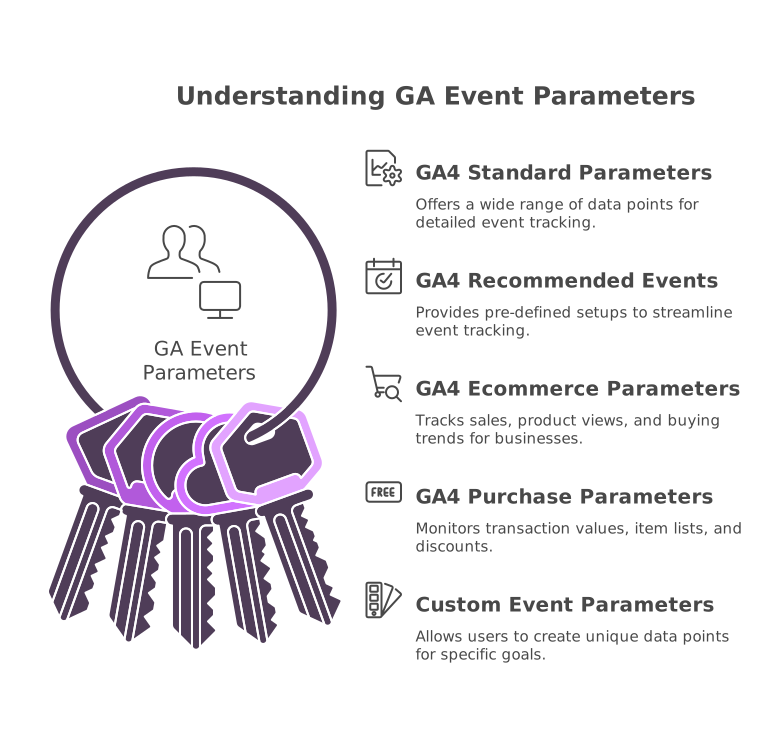
The Four Categories of GA4 Event Parameters You’ll Actually Encounter
Automatically Collected Parameters
Google Analytics 4 (GA4) event parameters start with what is gathered by default. These are called automatically collected parameters. Some examples are language, page location, and device type. GA4 adds these parameters to every event, so you always get core data. This helps you know the basics about users.
You do not need extra setup for these. They appear in most GA4 reports as soon as tracking is active. These parameters give you a helpful starting point for analysis. They answer basic questions about who visits your website and what device they use.
Enhanced Measurement and Recommended Parameters
GA4 event parameters also come from enhanced measurement and Google’s recommended events. Enhanced measurement adds more details, like scroll depth and outbound link clicks. These are not automatic but easy to turn on in the GA4 interface.
Recommended events have a set structure suggested by Google. For example, an ecommerce site uses purchase, add_to_cart, and begin_checkout. These events include parameters like value, currency, and item_id.
Parameters in this group help you dig deeper into user actions. You can track how people use your site or app. This makes it easier to spot trends and fix problems that block conversions. The data is ready for use in your GA4 dashboards and reports.
Custom Event Parameters and User Properties
Custom event parameters let you track details unique to your business. You add these using Google Tag Manager or directly in your code. Examples are coupon_used, membership_level, or product_color. These parameters are powerful for tracking what matters most to your team.
User properties are a special type of parameter. They describe traits about your users, like age group or subscription status. You can set up to 25 user properties per GA4 property. These help you group users and analyze behavior by audience.
The table below summarizes the four categories of GA4 event parameters:
| Category | Description | Example Parameters |
|---|---|---|
| Automatically Collected | Added by GA4 to each event | language, page_location |
| Enhanced/Recommended | Suggested by Google or easily enabled in GA4 | scroll, item_id, value |
| Custom Event Parameters | Made by you to track unique actions | coupon_used, product_color |
| User Properties | Describe user traits across sessions | age_group, membership_level |
GA4 Event Parameters vs. Custom Dimensions vs. User Properties: A Decision Framework
Understanding GA4 Event Parameters
GA4 Event Parameters are extra details attached to each event in Google Analytics 4. They describe what happened when a user interacts with your website or app. For example, a page view event might include the page’s title or URL as parameters.
These details help you understand the context of each event. Some parameters are collected automatically, like language or screen resolution. Others can be custom, like a product’s color or size during a purchase.
When you want to measure very specific actions, you can create your own event parameters. This is helpful for tracking details that matter to your business, such as coupon codes used at checkout. Remember, event parameters must be registered as custom dimensions or metrics if you want to view them in GA4 reports.
Custom Dimensions and Metrics: Making Parameters Useful
Custom Dimensions and Metrics turn your GA4 Event Parameters into fields you can see in your reports. A Custom Dimension is for text values, like the name of a product or a user’s membership level. A Custom Metric is for numbers, such as the price of an item or items in a cart. You need to register these in the GA4 property settings before they show up in your dashboards.
There are limits to how many custom dimensions and metrics you can create. For example, you can add up to 50 custom dimensions and 50 custom metrics per property. Choose carefully which parameters to register. Only add those that give real value to your analysis and reporting needs.
User Properties: Tracking User-Level Data
User Properties describe traits or categories about your users, not just their actions. These might include a user’s age, favorite product type, or sign-up method. You can set up to 25 unique user properties per GA4 property. These properties help you segment your audience and compare how different groups use your site.
Use User Properties when you want to understand long-term patterns. For example, tracking if logged-in users behave differently than guests. Unlike event parameters, user properties stick with the user over time and across their sessions. This gives you a broader view of user behavior, beyond single actions or visits.
Understanding Parameter Scopes: Event, User, and Item Level Data
Event-Level Parameters
GA4 Event Parameters at the event level capture details about a single action on your site. For example, if a user clicks a button, event-level parameters record what button was clicked and when. These details help marketers see what actions happen and how often. Event-level data answers questions like, “Which pages do users visit most?” or “What forms get filled out?”
Setting up event-level parameters is simple in GA4. They can include things like the page title, event location, or type of interaction. Each event can send multiple parameters. This information lets you track specific user actions across your website with accuracy.
User-Level Parameters
User-level parameters in GA4 connect data to individual users, not just single actions. These are called user properties and can include things like language, device, or signup source. User-level details help build a profile for each user so you can understand who visits your site.
GA4 Event Parameters at this level help answer, “Where do my users come from?” or “What devices do they use?” You can set custom user properties, like membership status or user age group, to add extra layers to your reports. This lets you see trends and patterns by user groups over time.
Item-Level Parameters
GA4 Event Parameters also work at the item level. This is important for ecommerce stores or apps with many products. Each product, or item, can have its own parameters, such as item name, ID, price, or category. These details help track which products are viewed, added to cart, or purchased.
Using item-level parameters, you can compare how different products perform. For example, you can see which items sell best or what categories are most popular. Here is a sample table showing typical item-level parameters for GA4 events:
| Parameter | Description |
|---|---|
| item_id | Unique product ID |
| item_name | Name of the product |
| price | Price of the item |
| item_brand | Brand name |
| item_category | Product category |
Understanding these parameter scopes in GA4 Event Parameters makes your data more powerful and helps you make smarter decisions.
How to Set Up Custom Event Parameters in GA4: Three Implementation Paths
1. Using Google Tag Manager (GTM) for GA4 Event Parameters
Google Tag Manager (GTM) is a popular way to set up GA4 Event Parameters. With GTM, you can create and manage tags without changing website code. This makes it easier for marketers and non-developers to work with tracking needs.
To use GTM, first set up a GA4 event tag. In your tag settings, you can add custom parameters as key-value pairs. For example, you might add “button_color” to see which button users click most. Always use clear names with lowercase letters and underscores. This makes reporting easier later.
Testing is important before publishing any tag changes. GTM has a preview mode. Use it to make sure your GA4 Event Parameters are firing as expected. Once tested, publish your changes to make data flow into GA4.
2. Hardcoding Events on Your Website or App
Some teams prefer to hardcode events directly on their site or app. This method gives more control over how and when GA4 Event Parameters are collected. Developers add the gtag("event", ...) code in the right place in the website code.
For each user action, like signing up or making a purchase, you can send custom parameters. Example:
gtag('event', 'sign_up', {
  method: 'email',
  plan_type: 'premium'
});
Remember to use short, clear parameter names. This path is best for teams that update their code often and have developer resources.
3. Using Measurement Protocol for Server-Side Events
The Measurement Protocol lets you send GA4 Event Parameters from your server. This helps track actions that happen off your website, like phone orders. You send data directly to GA4 using special HTTP requests.
You must include your GA4 measurement ID and other required fields in each request. This method can be complex but offers advanced control over event data. Measurement Protocol is useful for eCommerce stores tracking backend transactions. Always secure your requests to protect user data.
Below is a table comparing these three paths:
| Path | Skill Needed | Use Case |
|---|---|---|
| Google Tag Manager | Non-dev/Marketers | Flexible, no code changes |
| Hardcoded on Website/App | Developers | Full control, instant updates |
| Measurement Protocol | Advanced/IT | Server events, backend tracking |
GA4 Ecommerce Event Parameters and the Items Array Explained
Introduction to GA4 Ecommerce Event Parameters
GA4 Event Parameters are extra pieces of information you send with ecommerce events. They give more details about what users do on your site. When you track sales, cart additions, or product views, parameters help you understand these actions better. Common ecommerce event parameters include transaction_id, currency, value, and tax.
Each event can have required and optional parameters. For example, the ‘purchase’ event always needs the transaction_id and value. Optional parameters like shipping or coupon add more context. Setting up parameters correctly is key for getting clear reports in GA4. It also helps you spot trends in how people shop on your site.
The Items Array: Tracking Product Information
The items array is a special part of GA4 Event Parameters for ecommerce. It is a list that holds details about each product in an event. For example, if someone buys three products, the items array lists all three with their details. Each item can include item_id, item_name, price, quantity, and other values.
Here is a simple table showing some common fields in the items array:
| Parameter | Description |
|---|---|
| item_id | Unique product ID |
| item_name | Product name |
| price | Price of the product |
| quantity | Number of items bought |
| item_brand | Brand of the product |
| item_category | Product category |
The items array allows GA4 to track every product in every event, not just the total value. This means you can see which products are most popular, which categories perform best, and even how brands compare over time.
Best Practices for Setting GA4 Ecommerce Event Parameters
Use clear, consistent names for each parameter in your GA4 setup. Stick to lowercase and use underscores to separate words. Always send the right required fields with every event. For example, do not forget transaction_id for purchases and item_id for products.
Test your events and parameters using Google Tag Manager before pushing live. This ensures all details go to GA4 as expected. Review your reports to confirm GA4 Event Parameters are working and collecting the data you need. These steps help you get the most from your ecommerce tracking in GA4.
GA4 Event Parameter Limits, Quotas, and Naming Conventions
Limits and Quotas for GA4 Event Parameters
Google Analytics 4 (GA4) sets strict limits for event parameters. Each event in GA4 can have up to 25 event parameters. If you send more than 25, only the first 25 are processed. For custom dimensions and metrics, GA4 lets you register up to 50 user-scoped custom dimensions, 50 event-scoped custom dimensions, and 50 custom metrics per property. Names for GA4 event parameters must not exceed 40 characters. The value for each parameter is also limited to 100 characters for strings. Numeric values must follow Google’s formatting rules. If you use recommended or reserved parameter names, make sure they match Google’s documentation.
In addition, GA4 restricts the total number of user properties to 25 per property. This helps keep your tracking focused and easy to manage. If your events use too many parameters or user properties, data may not appear in your reports. Stay under these limits to avoid missing valuable information.
Naming Conventions for GA4 Event Parameters
GA4 event parameters require clear and consistent names. Use only lowercase letters, numbers, or underscores. Do not use spaces, hyphens, or special characters. Stick to simple, meaningful names that describe the data you are tracking. For example, use “product_category” instead of “ProductCategory” or “Product Category”.
Avoid using reserved names. Google keeps a list of names that cannot be used for custom event parameters. Examples include “event_name,” “user_id,” and “session_id.” If you use a reserved name, GA4 ignores that parameter. Always check Google’s list before naming new parameters.
When creating custom event parameters, keep the names short but clear. This makes it easier to find and use them in GA4 reports. Use underscores to separate words. For example, “cart_value” is better than “cartvalue” or “cart-value”. Document your naming conventions so your team can follow the same rules.
Best Practices to Stay Within GA4 Event Parameter Limits
Plan your GA4 event parameters before you start tracking. Identify the most important user actions and choose parameters that add value. Only send the parameters you need for your reports. Remove any that are not useful for analysis. Test your setup to make sure all data appears as expected.
Use Google Tag Manager to manage and organize your GA4 event parameters. This helps you keep track of what you are sending to GA4. Review your parameters often and clean up unused ones. By following these steps, you can keep your GA4 property organized and make the most of your data.
Troubleshooting GA4 Event Parameters: A Diagnostic Walkthrough
Common Issues with GA4 Event Parameters
Sometimes, GA4 Event Parameters do not work as expected. One main issue is missing events or parameters in your GA4 reports. This can happen if events are named incorrectly. Another problem is using parameter names that are not supported or are reserved by GA4. If the values you send are too long, GA4 might not save them. In some cases, you may not see custom parameters in your reports right away. This is because custom dimensions or metrics need to be set up first in GA4 settings.
To help, look for these issues first:
- Event or parameter names have spaces or uppercase letters
- Reserved names like “event_category” used for custom parameters
- Parameter values over 100 characters or incorrect data types
GA4 Event Parameters also have limits. You can only register up to 50 event-scoped custom dimensions and 50 custom metrics per property. Make sure you have not reached these limits, or new parameters will not appear.
Step-by-Step Diagnostic Checks
Start by checking your event setup in Google Tag Manager or your website’s code. Make sure GA4 Event Parameters match the intended event and follow GA4 naming rules. Next, trigger the event on your website and open DebugView in GA4. DebugView shows events and parameters in real-time.
If the event shows in DebugView but not in reports, check if you registered the custom parameter as a custom dimension or metric. Sometimes, it can take up to 24 hours for new parameters to appear in your standard GA4 reports. Double-check that you selected the correct data type, such as text or number, when registering new parameters.
If you still have trouble, use the GA4 Realtime report or the “event” table in BigQuery (if enabled) to see raw event data. This helps spot problems with data collection and parameter values.
Troubleshooting Tips and Tools
Use this checklist to guide your diagnostic process:
| Step | What to Check |
|---|---|
| Event Name | Matches naming rules |
| Parameter Name | Not reserved or too long |
| Custom Dimension/Metric | Registered in GA4 Admin |
| DebugView | Event and parameters appear live |
| Data Type | Text or number as needed |
| Value Limits | Not over character limits |
| Property Limits | Under 50 custom dims/metrics |
Using these steps and tools helps you catch and fix problems with GA4 Event Parameters quickly. Stay organized. Track changes and results as you go. This helps ensure your GA4 data is accurate and useful for reporting.
Advanced Use Cases: Audiences, BigQuery Export, and Server-Side Tagging
Using GA4 Event Parameters to Build Audiences
GA4 Event Parameters help you make smart audiences for your business. You can group users based on their actions, like purchases or video views. Setting up these audiences is easy in GA4. First, choose your event, such as a “purchase.” Then, use event parameters like “item_category” or “value” to refine your audience. For example, you could build an audience of users who bought shoes worth more than $50.
Once you define the audience, GA4 tracks it automatically. The platform updates these groups in real time. You can use these audiences for remarketing, custom reports, or to see how different groups behave. This makes it simple to focus your ads and content on the right people.
Exporting Event Data to BigQuery
BigQuery lets you store and analyze all your GA4 event data in one place. You can export raw event data with all the GA4 Event Parameters. This export is useful for large websites, eCommerce shops, or anyone needing to run deep analysis.
To use BigQuery, connect your GA4 property and choose the right settings. Every event and its parameters get stored in tables like the one below:
| event_name | item_id | value | currency |
|---|---|---|---|
| purchase | 12345 | 69.99 | USD |
| add_to_cart | 67890 | 34.99 | USD |
With this data, you can run SQL queries, build dashboards, or find trends. BigQuery also lets you join GA4 data with other sources, which helps you get a full picture of what’s happening.
Server-Side Tagging for Better Event Collection
Server-side tagging is a new way to track GA4 Event Parameters. Instead of sending data directly from a user’s browser, data goes to your server first. From there, your server sends the event to GA4. This adds security and can make data more accurate.
To use server-side tagging, set up a server container in Google Tag Manager. Next, send your events from your site to the server container. The server handles the GA4 Event Parameters and forwards them to Google Analytics. This setup helps with privacy and speed, and you can handle more complex data needs.
GA4 Event Parameter Best Practices: A Practitioner’s Checklist
Use Clear Naming Conventions
Always use simple and clear names for your GA4 Event Parameters. Pick names that describe the action or value being tracked, like “button_click” or “purchase_amount.” Only use lowercase letters and underscores to separate words. This makes it easier to read and search for parameters later. Avoid using spaces or special marks in names.
Stick with the same naming style for all your events and parameters. If you start with lowercase and underscores, keep using that. This helps keep your data tidy and easy to understand. Also, remember that GA4 has reserved names that you should not use for custom GA4 Event Parameters. Check the GA4 help docs to see which names are off-limits.
Select Relevant and Useful Parameters
Choose only the most important parameters that help your business goals. Do not track too many details that do not matter. For example, if you want to know which products get added to a cart, use parameters like “item_id” and “item_name.” For form submissions, track values like “form_type” or “user_role.” Each parameter should add value and help answer key questions.
Think about which type of parameter fits your data. Use text parameters for names or labels and number parameters for things like price or score. If you want to describe the user, set up user properties, like “membership_status” or “age_group.” Limit user properties to the most important ones, since GA4 lets you have 25 per property.
Test, Document, and Monitor Event Parameters
Test your GA4 Event Parameters before you start tracking real users. Use Google Tag Manager and the GA4 debug view to check that events and values are sent correctly. Make changes if something does not work as planned. Tracking errors early saves time later.
Write down all your GA4 Event Parameters, what they track, and how they are named. Keep your team updated with any changes you make. Regularly review your events and parameters to make sure they still fit your business needs. This way, your GA4 Event Parameters stay useful and correct.
GA4 Event Parameters: Frequently Asked Questions
What Are GA4 Event Parameters and Why Are They Important?
GA4 Event Parameters are extra pieces of information sent with each event in Google Analytics 4. They help describe details about what a user is doing on your website or app. For example, when someone makes a purchase, parameters can tell you what item was bought, the price, and the category. This makes your data more detailed and helpful.
Tracking GA4 Event Parameters lets businesses understand user actions better. These details help you find what works well on your site. You can then use the insights to improve your marketing or website experience. Marketers often use these parameters to measure things like sales, user clicks, and sign-ups.
How Do You Set Up and Use GA4 Event Parameters?
To set up GA4 Event Parameters, first decide what actions you want to track. Then, define which details matter most, such as product name or page location. After that, use Google Tag Manager or the gtag.js code to add these parameters to your events.
Here are the main types of event parameters:
- Automatically Collected Parameters (like page location or device type)
- Custom Parameters (add your own, like product_id or button_name)
- User Properties (show user traits, like age group or subscription type)
You can view the event parameters in your GA4 reports. To see custom parameters, set them up as custom dimensions or metrics. This way, you can use them in dashboards or reports to answer business questions.
Common Questions and Troubleshooting Tips
Q: How many GA4 Event Parameters can I use?
A: You can send up to 25 event parameters with each event. There are also limits for custom dimensions and metrics in your reports.
Q: Why can’t I see my custom parameters in GA4 reports?
A: Make sure you have registered these parameters as custom dimensions or metrics. It can take up to 24 hours for new parameters to show up in your reports.
Q: What naming rules should I follow?
A: Use only lowercase letters and underscores. Avoid spaces and special symbols. Stay away from reserved names that GA4 uses for built-in features.
This table shows the types of parameters and their uses:
| Parameter Type | Example | Purpose |
|---|---|---|
| Automatically Collected | ‘page_location’ | Tracks page being viewed |
| Custom | ‘button_color’ | Shows button color clicked |
| User Property | ‘membership_status’ | User’s membership type |