

What GA4 bounce rate actually means in modern analytics
Bounce Rate: The New Definition in GA4
In Google Analytics 4 (GA4), bounce rate has a new meaning. In the past, bounce rate showed how many sessions had just one page view. But in GA4, it is the percentage of sessions that are not engaged. An engaged session lasts more than 10 seconds, has a key event, or has two or more page views. This change helps marketers see if users are really interested in their site or app.
The formula in GA4 is simple: (Non-Engaged Sessions / Sessions) x 100. This means if many users leave quickly or do not interact, the bounce rate will be higher. The focus in GA4 is on real user engagement, not just on how many pages someone visits. This makes bounce rate a deeper measure of user interest.
Why This Change Matters
The new GA4 bounce rate helps marketers understand user behavior better. Old bounce rate could be misleading for blogs or single-page sites. A user could read a long article and leave, and UA would count it as a bounce. GA4’s method now considers if the user was truly engaged, even if they only saw one page.
This shift is important for digital marketing. It allows teams to focus on what works, not just what looks good on paper. Now, if your bounce rate is low, you know users find your site useful or interesting. This helps you direct your marketing and content strategies better.
Comparing UA and GA4 Bounce Rates
It is important to note that you cannot compare bounce rates between Universal Analytics (UA) and GA4. The two tools use different methods. UA tracked simple page visits, while GA4 tracks deeper engagement.
Here is a simple comparison table:
| Universal Analytics | Google Analytics 4 | |
|---|---|---|
| Bounce Rate Definition | % of one-page sessions | % of non-engaged sessions |
| Main Focus | Page views | User engagement |
This new approach in GA4 makes the bounce rate more useful for modern websites and apps. It gives a clearer view of how users interact with your content.
How GA4 defines engaged sessions (the three rules)
What Is an Engaged Session in GA4?
Google Analytics 4 (GA4) uses a new way to track user activity called engaged sessions. An engaged session gives you a better idea of how people interact with your website or app. This is important because it helps you measure if visitors are paying attention to your content or just leaving quickly. GA4 looks at more than just how many pages a user visits. It focuses on how much time they spend and if they do important actions.
Knowing what counts as an engaged session in GA4 helps you understand key metrics like engagement rate and bounce rate. This helps you find out where your site keeps people interested and where it might need some fixes.
The Three Rules for an Engaged Session
GA4 considers a session as engaged if it meets at least one of these three rules:
- Session Lasts Longer Than 10 Seconds: If a user stays on your site or app for more than 10 seconds, GA4 marks this as engaged. This rule is helpful for pages where people might only read or watch content but not click around.
- Session Includes a Conversion Event: If someone completes a key action, like making a purchase or signing up for a newsletter, GA4 counts the session as engaged. Conversion events show that users are interacting with your site in a meaningful way.
- Session Has Two or More Page Views or Screen Views: If a visitor looks at more than one page or screen during their session, it is also counted as engaged. This rule is useful for tracking if users explore more of your content.
Here is a table that summarizes the three rules:
| Rule Number | Engaged Session Rule |
|---|---|
| 1 | Lasts more than 10 seconds |
| 2 | Has a conversion event |
| 3 | Includes 2 or more page/screen views |
Why These Rules Matter
These rules give you a clearer picture of how people use your site. For example, in the past, if someone stayed on a page for a long time but didn’t click anywhere, it would have counted as a bounce in Universal Analytics. Now, GA4 would count that as an engaged session if the person stayed for more than 10 seconds.
Tracking engaged sessions using these three rules helps you measure the true value of your content. It shows you where your site is interesting and where you might lose visitors. This information is key for improving pages and making your website more successful.
Key differences between GA4 bounce rate and UA bounce rate
How UA and GA4 Define Bounce Rate
In Universal Analytics (UA), bounce rate means the percentage of sessions where the user visits only one page. If a visitor lands on your website and leaves without clicking to another page, it counts as a bounce. UA looks only at single-page sessions and does not care how long the user stayed or what they did on the page.
In Google Analytics 4 (GA4), bounce rate has a new meaning. GA4 bounce rate is the percentage of sessions that are not considered “engaged.” An engaged session is one where a user stays for more than 10 seconds, views at least two pages, or triggers a key event. This change makes bounce rate in GA4 more about whether people interact with your site, not just if they view more than one page.
Differences in Calculation
UA uses a simple formula: (Single-Page Sessions / Total Sessions) x 100. Every time someone visits only one page and leaves, it adds to the bounce rate. This can make bounce rates look high, even if people are spending time reading or watching a video on that single page.
GA4 calculates bounce rate as the inverse of engagement rate. The formula is: (Non-Engaged Sessions / Total Sessions) x 100. This means if a session does not last more than 10 seconds, does not trigger an event, and does not go to another page, it is counted as a bounce. This new way helps to show how users interact with your site, even if they do not visit more pages.
Why These Changes Matter
The new GA4 bounce rate is better for modern websites, like single-page applications or blogs. Many users may spend time reading content or watching videos without clicking to another page. With the old UA method, these visits counted as bounces, even though the visitor was engaged.
With GA4, you can track more than just page views. You get a clearer picture of real user engagement. This helps you see which content works best and decide where to improve your website. It also means you cannot compare bounce rates between UA and GA4 because the numbers have different meanings.
How to find and use bounce rate in GA4 reports
Locating Bounce Rate in GA4
Bounce rate is not shown by default in most GA4 reports. To see bounce rate, you need to add it manually. Start by opening Google Analytics and select your property. Go to the “Reports” section. Next, click on any of the standard reports, like “Engagement” or “Pages and screens.”
Find the customize icon at the top right, which looks like a pencil or edit button. Click on this icon to open the report customization panel. Click “Metrics,” then select “Add metric.” Search for “Bounce rate” in the list and check it. After adding, click “Apply” to save changes. Now, the bounce rate will appear in your chosen report.
You can repeat these steps to add bounce rate to other reports. It is helpful to save the report with bounce rate for future use. This lets you view bounce rate quickly whenever you need it.
Understanding and Using Bounce Rate Data
In GA4, bounce rate measures the percentage of sessions that were not engaged. This is different from old Google Analytics, which counted only single-page visits. In GA4, a session is not engaged if it did not last more than 10 seconds, trigger a key event, or view two or more pages.
By checking bounce rate, you can see which pages lose visitors quickly. High bounce rates might mean your page content is not matching what people expect. Compare bounce rates across channels, sources, or landing pages to spot problems.
Make a table like this to track bounce rate:
| Page Title | Bounce Rate (%) |
|---|---|
| Home Page | 33 |
| Blog Article | 56 |
| Contact Us | 28 |
This table helps you see which pages need improvement.
How to Take Action Based on Bounce Rate
If you find a high bounce rate on certain pages, review the content and see if it matches your marketing messages. Ensure your website loads fast and is easy to use. Check that your analytics tags are set up correctly on every page. Look at traffic sources that send visitors to high-bounce pages.
You can also test changes, like new headlines or images, to lower bounce rates. Use bounce rate with other metrics like engagement rate for a clearer view. This helps you make better decisions to improve your website and keep visitors interested.
What is a “good” GA4 bounce rate (benchmarks and context)
Understanding Bounce Rate in GA4
Bounce rate in Google Analytics 4 (GA4) is different from past versions. In GA4, bounce rate is the percent of sessions that are not engaged. An engaged session lasts more than 10 seconds, triggers a key event, or has two or more page views. This makes the GA4 bounce rate more focused on real user engagement. It gives a clearer view of how well your site or app is holding attention.
In the past, bounce rate was just about single-page visits. Now, GA4 counts more types of user actions. This means bounce rates may look lower than with Universal Analytics. Marketers should use the new definition to compare their results, not the old one. Always check your setup to make sure bounce rate is tracking as GA4 defines it.
Typical GA4 Bounce Rate Benchmarks
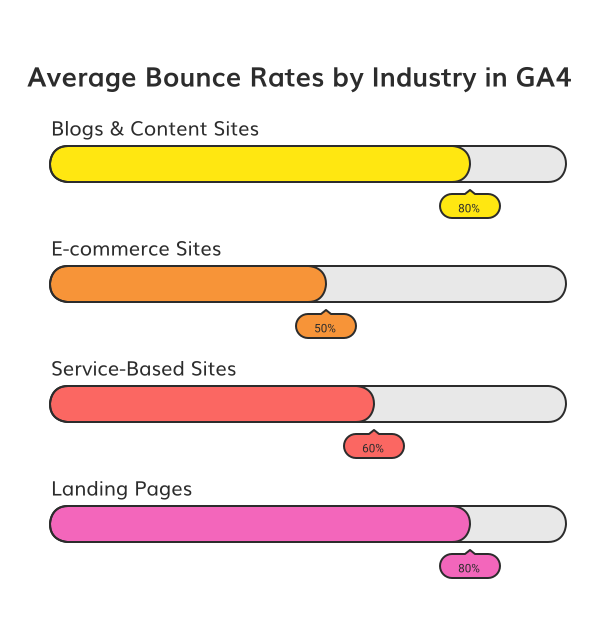
A good GA4 bounce rate is usually lower than what you saw in Universal Analytics. Most sites see GA4 bounce rates between 30% and 50%. These numbers can be a helpful guide. Here is a simple table for context:
| Industry | Average GA4 Bounce Rate |
|---|---|
| E-commerce | 20%-40% |
| B2B Services | 30%-50% |
| Blogs/Content | 40%-60% |
| Landing Pages | 50%-70% |
If your bounce rate is much higher, you may have problems with engagement. If it is much lower, you may have very engaging content or a setup error. Always look at your own goals and compare to others in your industry.
Factors That Affect a “Good” Bounce Rate
What counts as a good bounce rate depends on your website type and goals. E-commerce sites want low bounce rates. Blog and news sites often see higher rates, especially if users get what they need quickly. Landing pages may also have high bounce rates if they serve a single purpose, like downloading a file.
Things like page speed, mobile-friendliness, and clear calls to action can help lower your bounce rate. If users find your content helpful and easy to use, they are more likely to stay. Use GA4 to check which pages or channels have high bounce rates so you can make improvements.
Why your GA4 bounce rate might be high (root causes)
Poor User Experience
If your GA4 bounce rate is high, the first thing to check is your website’s user experience. A website that loads slowly or looks cluttered can turn visitors away fast. People do not want to wait for pages to load or find it hard to read or navigate your site. Even simple things like small text or hard-to-find buttons can make users leave before engaging with your content.
Another common issue is mobile usability. Most people browse sites from their phones. If your website isn’t mobile-friendly, visitors may leave quickly. Make sure your site adjusts well on different screen sizes. Test your site on phones and tablets to spot any problems that could push people away.
Irrelevant or Misleading Content
Content mismatches also raise bounce rates in GA4. If users click on an ad or search result but land on a page that isn’t what they expected, they will likely leave fast. This happens when marketing messages do not match what is on the website. Always make sure your ads and links lead to the right pages.
Pages with thin or shallow content can also drive users away. People come to your site looking for answers or solutions. If your page does not answer their questions or offer value, they have no reason to stay or explore further.
Tracking and Technical Problems
Sometimes, a high GA4 bounce rate is not about your content or design. It can be a sign of tracking or technical setup issues. If your GA4 tags are missing on certain pages, those sessions may not register correctly. This can lead to bounce rates that do not reflect actual user behavior.
Single-page applications or sites with lots of interactive features may also show higher bounce rates. If GA4 does not track user actions beyond the first view, it might seem like users leave quickly. Review your GA4 setup to be sure all key events and pages are tracked. Proper tagging ensures your bounce rate in GA4 is accurate and useful for your analysis.
How to lower GA4 bounce rate and improve engagement
Check Your Website and Tag Setup
First, make sure your website is set up correctly. Check that your Google Analytics 4 tags are installed on every page. If a page is missing tags, GA4 won’t track user actions. This can make your bounce rate look higher than it really is. Double-check your measurement codes and test with the GA4 DebugView tool. For apps, confirm the Firebase SDK is installed and working. Fix any tracking errors before working on engagement.
Next, review your site design. Make sure it loads fast. Slow sites lose users quickly. Check for broken links and fix them. Every part of your website should work smoothly. When users can move easily, they are more likely to stay and interact. This lowers bounce rate and helps you collect better data on engagement.
Improve Content and User Experience
Create engaging content that matches what your users want. If your visitors come from ads or search, make sure the landing page matches their interests. Keep your content easy to read and add clear headings. Use images and videos to break up long text. This helps keep readers interested for longer.
Add clear calls to action (CTAs) on each page. Tell users what to do next, like “Read More,” “Contact Us,” or “Buy Now.” This encourages more clicks and longer sessions. The more users interact with your site, the higher your engagement rate will be, and the lower your bounce rate will drop.
Analyze, Test, and Optimize
Use GA4 to look at key pages with high bounce rates. Check which traffic sources, devices, or referral sites are sending users who leave quickly. Try A/B testing different headlines, images, or CTA buttons. See what changes keep visitors longer.
Create a table to track your results. For example:
| Page | Old Bounce Rate | New Bounce Rate | Change |
|---|---|---|---|
| /home | 65% | 50% | -15% |
| /about | 60% | 40% | -20% |
| /products | 70% | 55% | -15% |
Keep testing and updating your content. Watch your GA4 dashboard for trends. Over time, these steps will help you improve engagement and lower bounce rate.
Common misconceptions about GA4 bounce rate
GA4 Bounce Rate Means the Same as Universal Analytics
Many people think the bounce rate in GA4 is just like the bounce rate in Universal Analytics (UA). This is not true. In UA, bounce rate is the percentage of sessions where users viewed only one page and did nothing else. In GA4, bounce rate is the percentage of sessions that were not engaged. An engaged session in GA4 is one that lasts more than 10 seconds, has a key event, or has two or more page views. This means a user could view only one page but still be an engaged session if they spend enough time or complete an action. The new definition can provide a clearer picture of user interest, especially for blogs or single-page sites.
This change confuses some users who compare bounce rates between the two systems. They expect bounce rates to stay the same when switching from UA to GA4, but the numbers are often very different. It is important to remember that these rates measure different things, so they cannot be matched or compared directly.
Bounce Rate Is a Default Metric in GA4
Another common misconception is that bounce rate appears by default in GA4 reports. In UA, bounce rate was a default metric, easy to find in most standard reports. In GA4, bounce rate is not shown by default. Users must add it to their reports themselves. Only those with Editor or Administrator roles can do this. This difference can make it harder for some people to find bounce rate data in GA4 until they customize their reports.
Here is a quick view:
| Platform | Bounce Rate Shown By Default? |
|---|---|
| Universal Analytics | Yes |
| GA4 | No |
High Bounce Rate Always Means Poor Performance
Many people believe that a high bounce rate in GA4 always signals a problem. This is not always the case. Sometimes, users find what they need quickly, like getting a phone number or reading an article, and then leave. This can count as a bounce even if the session was successful for the user. With GA4’s new definition, a session may not be counted as a bounce if the user spends more than 10 seconds or triggers an event.
To understand the numbers, it is important to look at the type of content and user goals. A high bounce rate on a blog post may not mean poor performance if users are reading the full article. Always check the context before making changes based on bounce rate alone.