

Introduction to GA4 Annotations
What Are GA4 Annotations?
GA4 annotations are special notes you can add inside Google Analytics 4 to track important events. Google Analytics annotations help everyone on your team know what happened on certain days. With GA4 notes, you can mark things like website changes, big sales, or new ad campaigns. This helps explain spikes or drops in your website traffic. Good annotations make data easier to understand for everyone.
When you look at charts in your Google Analytics property 4, annotations appear as small markers on the timeline. This lets you see right away when something important happened. Can you add annotations in GA4? Yes, you can, if you have the right admin permissions. Using GA4 annotations is a smart way to keep track of what affects your website data.
Why Use Annotations in Google Analytics 4?
Annotations help teams remember key events that change how website data looks. For example, if your site had an outage, you can add a GA4 note to explain why traffic dropped. If you start a new marketing campaign, adding a note helps everyone see why more visitors arrived. These google analytics annotations create a clear history in your data.
GA4 admin users can set up and manage annotations for the team. This means everyone can see why data changed, but only admins can edit or delete notes. More people are asking how to add annotations in GA4 because it’s so useful during big site updates or when launching campaigns.
Main Features of GA4 Annotations
Google Analytics 4 annotations are easy to find in the Reports section. Look for the note icon at the top right of your report. Click, and you can add a title, description, date, and even color code your note. There is no GA4 annotations API yet, so all notes must be added by hand.
Below is a table showing what you can do with GA4 annotations:
| Feature | Details |
|---|---|
| Who can add? | GA4 admin and editor roles |
| Where to add? | Reports section, top-right note icon |
| Date range possible? | Yes, single or multiple days |
| Visible to users? | Yes, everyone with report access |
| Max annotations | 1,000 per Google Analytics property 4 |
Good annotations make it easy for teams to understand data changes over time.
How to Add Annotations in GA4
Where to Find GA4 Annotations
To start using GA4 annotations, sign into your Google Analytics property 4 account. Next, go to any report where you want to add a note. Look for the note icon—this is usually in the top-right corner of the report page. This is where you can add and view Google Analytics annotations. If you can’t see the icon, check if you have the correct role. Only users with GA4 admin or editor access can add or edit GA4 notes.
When you click the note icon, a panel appears. This panel lets you see all current annotations and add new ones. This makes it easy to keep track of important events directly inside Google Analytics 4.
Steps to Add Good Annotations
Adding good annotations is simple. Click the note icon to open the annotations panel. Then, click the “Add Annotation” button. Fill in the details:
- Title: Give your annotation a clear, short name.
- Description: Add a brief note explaining what happened.
- Date Range: Select the dates that cover the event or change.
- Color: Choose a color to help organize your GA4 notes. For example, use green for campaigns or red for outages.
This helps you and your team quickly spot important GA4 annotations. Remember, clear GA4 notes lead to better data analysis.
Tips for Managing GA4 Annotations
Good annotation practices are important. Here is a quick table that shows best practices:
| Practice | Why It Helps |
|---|---|
| Use clear titles | Easy to read and understand |
| Add detailed notes | Helps explain data changes |
| Use color coding | Groups similar events |
| Keep notes up-to-date | Avoids confusion |
If you need to change or delete a note, go back to the annotations panel, find your note, and use the edit or delete option. GA4 admin or editor roles can manage these features. Currently, there is no GA4 annotations API, so all changes must be done in the GA4 interface. If you ask, “Can you add annotations in GA4?” the answer is yes—just follow these steps for better tracking within your Google Analytics property 4.
Creating Good Annotations
What Makes a Good GA4 Annotation?
Good GA4 annotations are short, simple, and easy to understand. They help everyone know why data changed on certain days. When using google analytics annotations, always keep details clear. Include what happened, when it happened, and who added the note. A good annotation can make it easier to spot trends or issues in your Google Analytics property 4 reports. GA4 notes should show up as reminders for all team members.
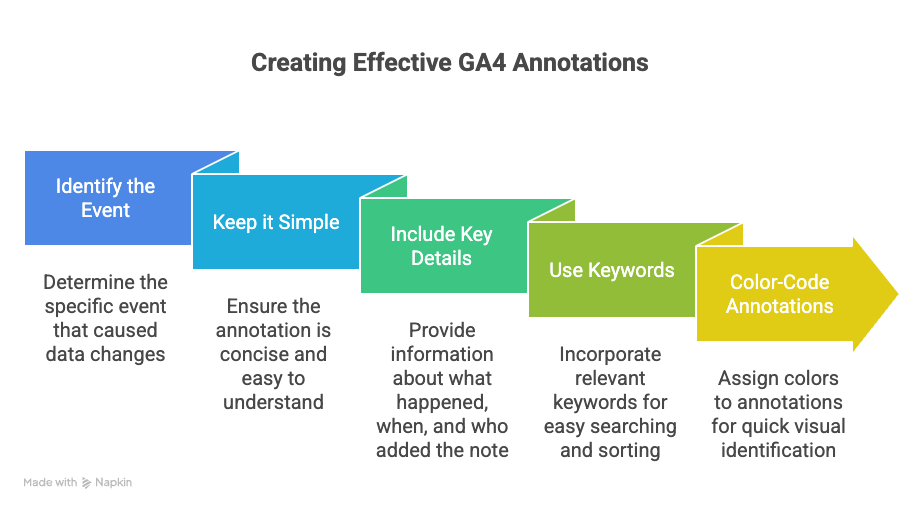
Use keywords like campaign launch, website update, or outage in your GA4 annotations. These words make it easier to search and sort notes later. Color-coding your annotations in GA4 is a good tip. For example, use green for new features and red for website outages. This helps the team spot important events faster.
Steps to Add Great Annotations in GA4
Knowing how to add annotations in GA4 is key. Start by going to the ‘Reports’ area in your Google Analytics property 4. Click the note icon on the top-right. Enter a title, write a short description, pick the date, and choose a color. Only users with GA4 admin rights or editor roles can add or edit GA4 annotations. If you wonder, “Can you add annotations in GA4?”—the answer is yes, with the right access.
Keep your notes consistent. Always use the same format and language for every annotation. This helps your team know what to expect. Here is a table showing what a good annotation might look like:
| Date | Title | Description | Color |
|---|---|---|---|
| 2024-06-10 | New Campaign | Started email campaign | Green |
| 2024-06-15 | Website Outage | Site down for 2 hours | Red |
| 2024-06-20 | Feature Launch | Released new checkout | Blue |
Best Practices and Tools for GA4 Annotations
To make the most of GA4 notes, train your whole team. Everyone should know how to use google analytics annotations. Use lists to track who adds and updates each annotation. If you need more features, look for a GA4 annotations API or use tools like Google Sheets or browser extensions. These tools can help keep more detailed records linked to your Google Analytics property 4.
Good annotations help everyone understand the story behind your data. They make it easier to answer questions about traffic spikes or drops. Use these tips to make your GA4 annotations clear and helpful for everyone.
Leveraging GA4 Annotations for Improved Insights
Understanding the Value of GA4 Annotations
GA4 annotations help everyone using Google Analytics property 4 keep track of important events. When you add GA4 notes, you make it easier to see why your traffic goes up or down. These google analytics annotations are useful when big things happen, like website updates or new marketing campaigns.
Good annotations give clear information about what happened and when. They help teams remember key events that might change the numbers. This makes it much easier for everyone to understand the data and make better decisions.
How to Add and Use GA4 Annotations
Can you add annotations in GA4? Yes! The GA4 admin or anyone with the right access can add these notes. To do it, go to the Reports area in GA4. Click the note icon at the top-right of the report. Fill in the title, a short description, pick the right date, and choose a color. This is how to add annotations in GA4.
Here are some tips for making good annotations:
- Use simple titles that everyone understands.
- Pick colors to show the type of event (like green for new campaigns).
- Write clear notes about what happened.
You can also use tools like browser extensions or Google Sheets for extra notes, but the built-in system is easy for most teams.
Using Annotations for Better Data Analysis
GA4 annotations appear on line charts in reports. They act as reminders for everyone using google analytics property 4. If you see a traffic spike, check the GA4 notes to see if a campaign or update happened. Good annotations save time and help your team spot trends faster.
You do not need to remember every detail because annotations keep a record. If you want more control, you can try the GA4 annotations API or blend your notes using Looker Studio. Keeping good annotations helps everyone understand the story behind the data.
GA4 Annotations API: Advanced Usages
Automating Annotation Creation
The GA4 annotations API lets users create and manage google analytics annotations without manual steps. This is helpful for teams that want to ensure every important event is logged right away. For example, if your website launches a new feature, your system can send a note directly to your GA4 property. This keeps your notes complete and always up to date.
Some companies connect their marketing tools or deployment systems to the GA4 annotations API. When a new campaign goes live or a site update is finished, the system adds a ga4 note right away. This saves time for the ga4 admin and makes sure every event gets recorded. Good annotations from the API help everyone know why data changes on certain dates.
Bulk Annotation Management
Many teams need to add, update, or delete lots of notes at once. The ga4 annotations API can handle bulk actions. For example, you can upload a spreadsheet with several events and use the API to add them into your Google Analytics property 4 all at once. This prevents missing anything and keeps your analysis organized.
Using the API, a ga4 admin can also fix errors in past annotations. If a note has the wrong date or title, it can be updated with a simple API call. This makes managing many google analytics annotations much easier than doing it by hand in the GA4 interface.
Integration with Other Tools
The GA4 annotations API works well with tools like Google Sheets or project management apps. Teams can build their own dashboards that pull in ga4 notes as events happen. This means the right people see the right information, and all data analysis stays clear.
Some companies use the API to create timelines that match their GA4 data with business activities. By linking project schedules and marketing calendars to google analytics property 4, teams can spot trends and learn from their best campaigns. This makes it simpler to answer questions like “Can you add annotations in GA4?” or “How to add annotations in GA4?” by showing notes added both by people and by automated systems.
The table below shows examples of advanced annotation use:
| Event Type | Method | Benefit |
|---|---|---|
| Marketing Launch | API Automation | Instant, accurate logging |
| Website Update | Bulk Upload | Saves time, fewer mistakes |
| Bug Fix | External Integration | Data stays in sync |
Conclusion
Why GA4 Annotations Matter for Analysis
GA4 annotations are a powerful tool for understanding your website data. Good annotations help teams remember what happened on certain days. They make it easier to spot why numbers went up or down. Using Google Analytics annotations, you can connect changes in traffic to real events. For example, if you launch a new marketing campaign, add a note. This way, everyone knows why they might see a spike in visits. When questions come up, annotations give fast answers.
A GA4 admin can manage these notes across your Google Analytics property 4. Everyone who uses reports can see these GA4 notes, but only editors or admins can add or change them. This keeps things clear and organized. Can you add annotations in GA4? Yes, but only if you have the right permissions. This makes sure your data stays safe and correct.
Best Practices for Good Annotations
How to add annotations in GA4 is simple. Click the note icon in your reports. Give your annotation a clear title and short description. Choose a color to help organize your notes. For example, use green for campaigns, red for outages, and blue for website changes. Stick to these colors so everyone understands quickly.
List of tips for better GA4 annotations:
- Always write clear and short notes.
- Pick colors that mean something to your team.
- Use date ranges for longer events.
- Update notes if plans change.
If the built-in feature is missing, try GA4 annotations API, browser plugins, or Google Sheets. Some people use Looker Studio to show these notes next to their charts. Each method helps you track key events and improves your data analysis.
Making the Most of Annotations in Google Analytics Property 4
Keeping good GA4 notes helps your whole team. It makes talking about reports much easier. When you explain what happened, everyone can see the same facts. You do not have to remember every event. The notes do the work for you. This is great for new team members or when looking back at old data.
Staying consistent with your annotation process is important. Use the same rules every time. This helps everyone trust the data and makes your analysis stronger. No matter which method you choose, using GA4 annotations will make your Google Analytics property 4 more useful and easier to understand.
FAQ
What are GA4 annotations?
GA4 annotations are special notes you can add inside Google Analytics 4 to track important events like website changes, sales, or new ad campaigns. They help explain spikes or drops in website traffic and make data easier to understand.
Can you add annotations in GA4?
Yes, you can add annotations in GA4 if you have the right admin or editor permissions.
Why should I use annotations in Google Analytics 4?
Annotations help teams remember key events that affect website data, such as outages or marketing campaigns, providing clear context for changes in traffic and improving data analysis.
Who can add or manage GA4 annotations?
Only users with GA4 admin or editor roles can add, edit, or delete annotations.
Where do I find GA4 annotations in the interface?
Annotations can be found in the Reports section of GA4, usually via a note icon located at the top-right corner of the report page.
What details can I include when adding a GA4 annotation?
You can add a title, description, date range (single or multiple days), and assign a color to organize your notes.
How many annotations can I have per GA4 property?
You can have up to 1,000 annotations per Google Analytics property 4.
Are GA4 annotations visible to all users?
Yes, all users with access to the reports can view annotations, but only admins and editors can modify them.
What makes a good GA4 annotation?
Good annotations are short, clear, and easy to understand. They should explain what happened, when, and who added the note, using consistent titles, detailed descriptions, and color coding.
How do I add a GA4 annotation step-by-step?
- Go to the Reports section in GA4.
- Click the note icon at the top-right.
- Click “Add Annotation.”
- Enter a clear title, description, date range, and choose a color.
- Save the annotation.
What are some best practices for managing GA4 annotations?
- Use clear titles and detailed notes.
- Apply consistent color coding.
- Keep annotations updated.
- Maintain consistent formatting and language.
Is there an API for GA4 annotations?
Currently, there is no official GA4 annotations API available for manual additions, but some companies use third-party tools or integrations to automate annotation creation.
How can automation help with GA4 annotations?
The GA4 annotations API (when available) or external tools can automate adding and managing annotations, ensuring instant and accurate logging of important events like marketing launches or website updates.
Can I manage multiple annotations at once?
Yes, bulk annotation management is possible using API tools to add, update, or delete multiple notes simultaneously, saving time and reducing errors.
How do GA4 annotations improve data analysis?
Annotations act as reminders on line charts, helping teams quickly identify reasons behind traffic changes and trends, making data analysis faster and more accurate.
Can GA4 annotations integrate with other tools?
Yes, they can integrate with tools like Google Sheets or project management apps to create dashboards and timelines that sync GA4 data with business activities.
What are some examples of using GA4 annotations effectively?
- Marking marketing campaign launches with green color coding.
- Logging website outages in red.
- Noting feature launches in blue.
- Using automated API entries for instant event logging.
Why do GA4 annotations matter for teams?
They provide a shared history of important events, helping everyone understand changes in data, avoid confusion, and make better-informed decisions.
What should I do if I want to edit or delete an annotation?
Go to the annotations panel via the note icon, find the annotation, and use the edit or delete option. Only users with admin or editor roles can perform these actions.
Are there any tools recommended for enhancing GA4 annotations?
Besides GA4’s built-in system, tools like browser extensions, Google Sheets, or Looker Studio can help maintain detailed records and display annotations alongside reports.
How do I ensure consistency in GA4 annotations?
Always use the same format, language, and color scheme for your annotations to help your team quickly understand and trust the notes.