

Introduction
What Are Asymmetrical Layouts and Overlapping Elements?
Web design helps make websites look and feel special. Two creative ways to design a website are using asymmetrical layouts and overlapping elements. An asymmetrical layout does not keep everything centered or balanced in the same way on both sides. Overlapping elements mean that shapes, pictures, or words are placed on top of each other.
These design styles can make a website stand out and look exciting. They help grab the attention of people who visit the site.
Designers use these methods to break away from old, boxy designs. Most websites use straight lines and even spaces. By using asymmetry and overlaps, designers can add movement and energy to a page. This keeps visitors interested and makes the website fun to explore.
Why Use Asymmetrical Layouts and Overlapping?
Asymmetrical layouts and overlapping elements help guide visitors to important parts of a website. For example, a big heading may overlap a photo to highlight a key message. Buttons and calls to action can be placed in areas that catch the eye. Using these styles can also make the website feel fresh and modern.
Here are some benefits:
- Creates a unique look
- Makes parts of the site stand out
- Helps tell a story with images and text
- Keeps visitors interested
Designers are careful when using these styles. They want the website to look good on computers and phones. Too much overlap can make things hard to read, so testing is important. Websites need to look nice and still be easy for everyone to use.
How Do Designers Use These Styles?
There are many ways to use asymmetrical layouts and overlapping in web design. Some designers put text over images and use bright colors behind words. Others might layer boxes and shapes to make a section pop. Even the way pictures and buttons are placed can use asymmetry. These choices help create a strong visual message.
Tables can show how these styles compare:
| Style | Main Feature | Effect on Website |
|---|---|---|
| Asymmetrical Layouts | Uneven, off-balance | Adds excitement |
| Overlapping Elements | Layers, stacking | Creates depth and focus |
Both approaches can make sites more memorable. They help websites stand out and connect better with visitors.
What Are Asymmetrical Layouts and Overlapping Elements? (Plain-English Definition)
Understanding Asymmetrical Layouts
Asymmetrical layouts in web design do not use perfect balance on each side of the screen. Instead, different shapes, sizes, and colors are used to create interest. This means that things are not always lined up or matched. One side might have a big image, while the other side only has text. These designs break the regular grid. They do not mirror each element on both sides.
Asymmetrical layouts help guide where the viewer looks. Designers use space, color, and size to lead the eye to important parts. For example, a large picture on one side and small text on the other can draw attention. This setup can make a website look more creative. It feels less like a box and more like a story.
What Are Overlapping Elements?
Overlapping elements are when parts of a website cover each other. For example, text might sit over an image, or shapes might cross over each other. These overlaps can help show which content is most important. They also make pages feel deeper and less flat.
There are many ways to use overlapping elements. Designers might put colorful blocks behind text, or stack pictures for a bold effect. Sometimes, buttons or links overlap pictures to draw attention. This style is different from layouts where each box has its own space. Overlapping can make a website feel more dynamic and modern.
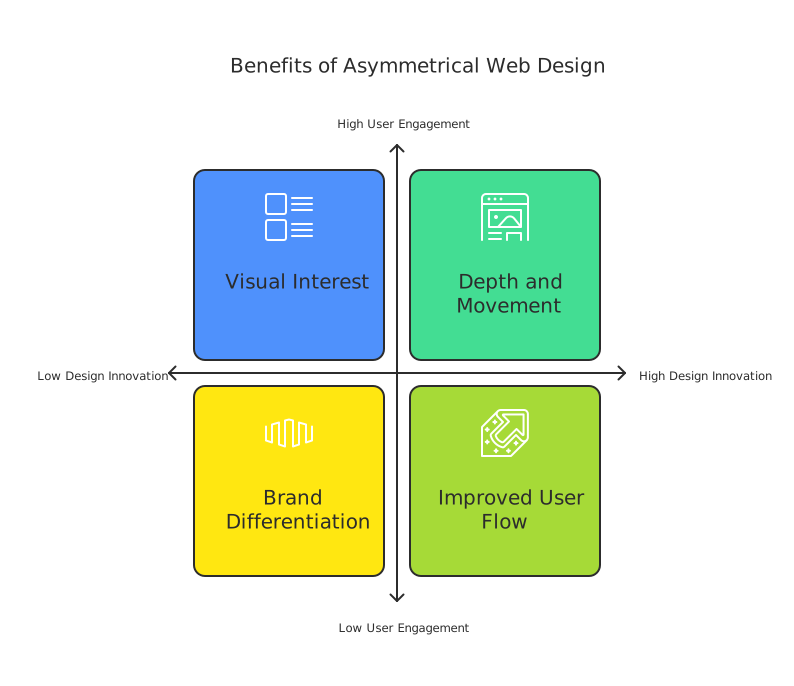
Key Features of Asymmetrical Layouts and Overlapping Elements
| Feature | Asymmetrical Layouts | Overlapping Elements |
|---|---|---|
| Balance | Uneven, creative | Layered, adds depth |
| Main use | Guide the viewer’s eye | Show importance, add interest |
| Example | Big image vs. small text | Text over hero image |
| Feeling | Unique, less boxy | Modern, visually interesting |
Both asymmetrical layouts and overlapping elements make web pages stand out. They help designers tell a story and grab attention. This approach can help websites look fresh and exciting.
The Foundations of Asymmetrical Balance
What is Asymmetrical Balance?
Asymmetrical layouts and overlapping elements use balance in a different way from traditional design. Instead of placing items evenly on each side, designers use shapes, colors, and images to create balance in new ways. This helps keep the website interesting. It also draws attention to important parts on the page. Asymmetry means that two sides are not the same, but the design still feels stable.
Balance is not about making everything look even. It is about making different parts work together. A large image on one side can balance with several smaller items on the other. Designers use color, shape, and space to find this balance. Asymmetrical layouts and overlapping can guide the viewer’s eye to key content.
Key Elements of Asymmetrical Balance
There are several tools to help create balance without symmetry:
- White Space: Space around objects, called white space, keeps the layout clean. It helps users focus on what matters most. Too little white space can make a page look crowded.
- Contrast: Using different colors, fonts, or shapes creates interest. This makes one part stand out and another part fade into the background.
- Visual Weight: Big, bold items feel heavy. Small, light items feel lighter. Good designs use these weights to make the layout feel steady.
- Overlapping Elements: Putting one item partly over another creates depth. Overlapping can lead the eye and make the page look more lively.
Why Asymmetrical Layouts and Overlapping Work
Asymmetrical layouts and overlapping keep users interested. They break up the boring look of even rows and columns. This style can make a website stand out from others. It also helps show which parts of the site are most important.
With overlapping elements, designers can build layers. These layers make the site look modern and creative. When used well, they help users find updates, news, or calls to action quickly. These techniques give websites a fresh and bold feel.
Perception and Hierarchy: Why the Eye Accepts Asymmetry
How We See Asymmetrical Layouts and Overlapping Elements
When looking at a web page, the eyes move to what stands out first. Asymmetrical layouts and overlapping elements grab attention fast. Our eyes don’t need things to be even or perfectly centered. We like when items look different or a bit off-balance. This helps the website feel lively and unique. Asymmetrical layouts and overlapping designs guide the eyes to important spots, like a big headline or a special offer. These tools help websites avoid looking too plain or stiff.
Overlapping elements, such as images or colorful shapes, create depth. This makes the website feel three-dimensional and exciting. It also helps show which parts are most important. When things overlap, the top layers are easier to see. The brain quickly figures out what matters most, making it simple to know where to click or read next.
Hierarchy and Visual Order in Web Design
Hierarchy is important in web design. It tells us what to look at first, second, and third. Asymmetrical layouts and overlapping elements build this order. Designers use size, color, and placement to show what matters most. For example, a large, bold title might overlap a picture. This tells us the title is important. Smaller text or less colorful pieces are seen as less important.
A table can help show ways to use hierarchy:
| Element | What Stands Out? | Why It Works |
|---|---|---|
| Large bold headline | The headline | Size and overlap make it pop |
| Bright button | The button | Color and position draw attention |
| Faded background image | The headline or button | Overlapping sets visual priority |
When websites use hierarchy, people find what they need faster. Asymmetrical layouts and overlapping elements are tools for this. They keep the site clear, even when things are not lined up or are layered.
Balance and Comfort for the Viewer
Too much asymmetry or overlap can feel messy. Good web designers know how to balance these elements. They use white space and careful spacing so the page does not become confusing. Even when items are uneven or not centered, the layout should still feel comfortable. This means users can enjoy the design and still find information easily.
Overlapping elements can be used with care so the page stays readable. Asymmetrical layouts keep things interesting, but the eye always needs a place to rest. With the right mix, websites can look creative and stay easy to use.
Symmetrical vs. Asymmetrical: A Direct Comparison
What Is Symmetrical Web Design?
Symmetrical layouts use balance and evenness. In these designs, each side of the page mirrors the other. This gives websites a clean and tidy look. It helps users focus because the style feels comfortable and familiar. Many business sites use symmetrical layouts because they are easy to build and maintain.
One main feature of symmetrical design is the use of grids. Every element fits neatly into boxes or lines. This helps keep images, text, and buttons in order. Often, websites with symmetrical layouts look calm but can sometimes seem dull or plain. They do not allow for much creativity with overlapping elements.
Exploring Asymmetrical Layouts and Overlapping
Asymmetrical layouts look different. Both sides of the page are not the same. Designers use bold shapes, big letters, and overlapping to guide your eyes. This layout gives the website a unique and modern feeling. It helps a brand stand out.
With asymmetrical layouts and overlapping, designers can layer images and text. For example, a headline might cover part of a big picture. Or, a button could sit over the edge of a photo. This makes the page exciting and draws attention to key things like news or offers.
Comparing Both Styles
Here is a quick table to compare symmetrical and asymmetrical layouts:
| Feature | Symmetrical | Asymmetrical & Overlapping |
|---|---|---|
| Balance | Even | Uneven |
| Visual Interest | Calm, simple | Dynamic, creative |
| Use of Overlapping | Rare | Common |
| Best For | Easy reading | Standing out |
| Structure | Grids | Free-form, layered |
Symmetrical layouts are safe and neat. Asymmetrical layouts and overlapping are bold and eye-catching. The choice depends on what kind of website you want. Some brands may need a tidy, simple look. Others want to be different and bold. Both styles have their place in web design.
When NOT to Break the Grid
When Consistency Matters Most
Asymmetrical layouts and overlapping can make a website stand out. But there are times when breaking the grid is not the best choice. If a website needs to share lots of information in a clear way, a strict grid helps. For example, news sites or educational pages use grids to keep things organized. This helps users find what they need without getting confused. A regular grid makes text and images easy to scan and read.
Using overlapping or wild layouts on these sites can make things messy. Users might have a hard time following the flow of the page. Everyone likes cool designs, but it is important to think about easy reading first. If the main goal is to deliver news or teach, keeping to the grid works best.
When Accessibility Is Key
Some people need help using websites. They might use screen readers or need bigger words and buttons. Asymmetrical layouts and overlapping can make navigation tough for these users. A simple grid, with clear lines and spacing, works better for everyone.
If a website must meet strong accessibility rules, it is not a good time to break the grid. Text on top of images can be hard to read. Odd shapes and layers may confuse people who rely on tools to get around the site. Keeping things clear and simple helps more people enjoy the website.
When Time and Budget Are Limited
Creating asymmetrical layouts and overlapping designs takes more planning. It can also mean more testing to make sure the site works on phones and tablets. If a team has tight deadlines or a small budget, sticking to the grid is a smart choice.
A grid-based design is quicker to build and easier to update. This saves time and money. For small projects or quick launches, it is safer to keep things simple and neat. Later, with more resources, the design can grow into something more creative.
Core Techniques That Create Asymmetry
Using White Space and Balance
White space is a key part of Asymmetrical Layouts and Overlapping in web design. It gives each part of the page room to stand out. This stops the design from looking crowded. Designers use white space to help eyes rest as people look at the page. It also makes important content pop out more.
Balance is also important in asymmetrical layouts. Designers do not line up everything in the center. Instead, they might put a big picture on one side and smaller text on the other. The goal is to keep the page looking even, even when things are not the same on each side. Balance helps the site feel welcoming, not messy.
Overlapping Elements and Layering
Overlapping makes a web page feel more alive. Designers can put words on top of pictures or shapes. This mixes things up and draws the viewer’s eyes to certain spots. For example, putting a headline across a hero image grabs attention right away. Layering also adds depth, so the page does not feel flat.
To keep things neat, designers use color blocks or faded overlays behind text. This helps everyone read the words, even with images behind them. Layering can also help guide people to the most important buttons or messages on the site.
Playing with Typography and Movement
Typography is a fun tool in Asymmetrical Layouts and Overlapping. Big, bold letters can sit next to small, thin ones. This grabs attention and makes the message clear. Fonts with different weights or styles make each section feel unique.
Movement is another way to create interest. Designers may place items at angles or off-center. This guides the viewer’s eyes around the page. Sometimes, they use bright colors or shapes that point to buttons. These tricks help users know where to look and what to do next.
Techniques That Add Motion and Emphasis
Using Overlapping Elements to Show Movement
Asymmetrical Layouts and Overlapping make websites look lively. Designers can use overlapping shapes, pictures, and colors to guide the eye. For example, a picture can overlap a text box, making it stand out more. This tricks the eye into following from one area to another. When shapes or images go outside their boxes, it feels like they are moving across the page.
Here are some ways to use overlapping for motion:
- Place text over images with bold backgrounds.
- Let parts of pictures hang over borders.
- Stack colorful shapes for depth.
These steps help visitors focus on the most important parts. It also makes the website feel less stiff and more fun.
Emphasizing Content with Asymmetrical Layouts
Not every part of a website has to match up perfectly. Asymmetrical Layouts use uneven spaces, big shapes on one side, or different colors to draw attention. This makes each webpage feel unique and not like a simple grid. If a big button is on one side and small pictures are on the other, people notice the big button first.
Some ways to add emphasis:
- Use big fonts for headlines on one side.
- Place colorful blocks behind important information.
- Offset pictures, so they lean left or right.
This balance helps highlight what matters most. Asymmetry makes the page easier to scan and keeps people interested.
Adding Motion with Animations and Transitions
Simple movements can make Asymmetrical Layouts and Overlapping even better. For example, pictures can slide into place when the page loads. Buttons can grow bigger when hovered over. Short, smooth animations grab attention without being distracting.
A table of ideas:
| Technique | What It Does |
|---|---|
| Sliding images | Shows content in order |
| Growing buttons | Highlights actions |
| Fading text blocks | Softly shifts focus |
These touches add energy to your web design. They make using the website a more enjoyable experience.
Building Overlap with CSS Grid
How CSS Grid Creates Overlapping Effects
CSS Grid is a powerful tool for making complex web layouts. It helps place and size items anywhere on a page. With CSS Grid, designers can break out of normal boxes. This means they can layer elements on top of each other. Asymmetrical layouts use this to make sites look unique and exciting. Overlapping elements on a grid can show images, buttons, or text in new ways.
To create overlap, grid items can be set to start and end on the same grid lines. This makes them sit on top of each other. For example, one box may sit in columns 1 to 3, and another may start at column 2 and stretch to column 4. The result is a creative overlap. This is helpful for making asymmetrical layouts stand out and guide users’ eyes around the page.
Tips for Overlapping Elements in Asymmetrical Layouts
When building overlaps, keep the look clean and easy to read. Too many layers can confuse people or make the site messy. Use only a few overlapping elements at a time. Make sure the important stuff like buttons and text stays clear. Color and shadow can help show which element is on top. This can add depth and interest without being too busy.
Here are some tips for using CSS Grid to make overlaps:
- Use grid-area to place items where you want them to overlap
- Try z-index to control which element sits above
- Use transparent backgrounds so layers can show through
- Check how the overlap looks on tablets and phones
A good overlap uses space well and keeps things balanced. Asymmetrical layouts and overlapping elements work best when there is enough white space. This gives every part room to stand out.
Example: Simple CSS Grid Overlap Table
| Element A | Element B (overlaps A) |
|---|---|
| grid-row: 1/3 | grid-row: 2/4 |
| grid-col: 1/4 | grid-col: 2/5 |
In this table, Element B sits partly on top of Element A. This effect is used in many modern web designs. Overlapping elements can highlight special content or create a fresh look. CSS Grid lets designers build these features with only a few lines of code.
The Stacking-Context Trap and Other Overlap Methods
Understanding the Stacking-Context Trap
When using Asymmetrical Layouts and Overlapping elements, knowing about stacking context is important. Stacking context happens when web page parts pile up on top of each other. Each stack creates a new layer. If you do not plan stacking order well, content can hide behind other content. Sometimes, a menu or button will get stuck behind an image or colored block. This makes things hard to read or click.
A stacking context is created by CSS. For example, using “position: relative” or “z-index” makes a new stack. Elements with higher “z-index” values sit above those with lower ones. Problems happen if you forget how stacks work. A button inside a stack with a lower z-index can get trapped under other things. This is called the “stacking-context trap.” It is common in Asymmetrical Layouts and Overlapping designs.
Overlap Methods for Creative Asymmetry
Designers use many techniques to overlap elements in Asymmetrical Layouts. One method is layering text over images. By setting the image as a background, you can put bold text on top. Colored shapes or blocks can add even more depth to the layout. Using different shapes and sizes gives the page a lively feel.
Another method is edge-overlapping, where elements next to each other poke across their borders. For example, a photo and a block of text might overlap by a few pixels. This breaks the boxy look of most websites. Split screens let one side slide partway over the other, creating interest. These overlaps help guide visitors’ attention to important parts of the page.
Keeping Overlaps User-Friendly
Good Asymmetrical Layouts and Overlapping designs watch out for readability. Too much stacking can make text hard to see. Always check how overlaps look on tablets and phones. Sometimes, stacking must be removed on smaller screens.
A simple table can help keep track of overlapping layers:
| Element | Stack Order (z-index) |
|---|---|
| Hero Image | 1 |
| Colored Block | 2 |
| Text Headline | 3 |
Testing overlaps on many devices is key. This practice makes sure everyone can use the site, no matter what screen they are on.
A Complete Worked Example: Overlapping Hero + Offset Card Grid
Planning the Asymmetrical Hero and Card Grid
An asymmetrical layout starts with a bold hero section at the top of the webpage. The hero area can use a large image as the background. Overlapping elements come into play when you place big, attention-grabbing text partly over the image. Next, plan a grid of cards below the hero. Instead of lining up the cards neatly, offset them so some cards rise up and overlap with the hero area. This creates a layered look and draws eyes to different parts of the page.
Make a quick sketch or wireframe before building. Mark where the hero image goes. Show how the heading text and buttons will sit over the image. Place the grid just below, then choose two or three cards to overlap slightly with the hero zone. Add some extra space on one side to keep the design from looking too heavy.
Building the Overlapping Elements
Start coding the hero section. Use CSS to set up a background image. Make the headline text large and bold. Use the position property to move it partly over the image. Add a colored shape or block behind the text for more emphasis. Now, create the card grid using flex or grid CSS. Offset every other card by setting a negative top margin. This causes some cards to “pop up” and overlap with the hero section.
For an asymmetrical look, push the entire grid a bit to one side. Leave more space on the left or right. This unbalanced placement is a key feature of asymmetrical layouts and overlapping elements.
Final Touches for Usability and Style
Check the design on different screen sizes. On mobile, stack the hero text and the cards so nothing becomes hard to read. Make sure overlapping does not block buttons or links. Adjust spacing to keep the page clean and easy to use. Use a simple color palette to help users focus on important content.
Here’s a quick table for key steps:
| Step | Action |
|---|---|
| Plan | Sketch hero and card grid, decide overlaps |
| Build Hero | Add background image, place text with overlap |
| Create Card Grid | Code grid, offset some cards, make them overlap hero area |
| Adjust for Mobile | Stack content, fix overlaps for small screens |
| Style and Check | Balance space, test usability, keep it simple |
Making Asymmetrical Layouts Responsive
Why Responsive Design Matters
Websites must look good on every screen. Asymmetrical Layouts and Overlapping elements add style but can break on small devices. If a site is not responsive, users may not find what they need. They may leave quickly. A good design should change and fit every screen, from big computers to small phones.
When using Asymmetrical Layouts and Overlapping, designers must test layouts often. They should make sure text is still easy to read. Images must not cover important content. A responsive design gives every user a good experience, no matter the device.
Tools and Techniques for Responsive Asymmetrical Layouts
One way to help Asymmetrical Layouts and Overlapping work on all screens is by using CSS Grid or Flexbox. These tools help move elements easily. Designers can change spaces, size, and order based on screen size. For example, an overlapping image and text can stack or shift on a phone.
Making images flexible is another key step. Images should resize and move as screens get smaller. Text that overlaps images should adjust too. Using media queries, designers can set special rules for different devices. This keeps the design balanced and clear on any screen.
Key Tips for Mobile-Friendly Overlapping Elements
- Test overlapping areas on many devices. Check that no part of the content is hidden or hard to see.
- Use enough space between overlapping parts. This helps fingers tap the right spot on touchscreens.
- Choose text colors that stand out over images. This keeps words easy to read, even if things overlap.
The table below shows how Asymmetrical Layouts and Overlapping elements can look on different devices:
| Device Type | Layout Change |
|---|---|
| Desktop | Large overlaps, bold spacing |
| Tablet | Medium overlaps, tighter grid |
| Phone | Stacked elements, less overlap |
Designers need to plan for each device. With good planning and testing, Asymmetrical Layouts and Overlapping elements can be both creative and easy to use everywhere.
Responsive Pitfalls on Small Screens
Overlapping Elements on Mobile Devices
Overlapping elements can make a web page look creative and unique. But on small screens, like phones, these designs can cause problems. Text might cover images in a way that makes both hard to see. When buttons or pictures stack over each other, users may not know where to click. This can confuse or frustrate people trying to use the site on their phones. Asymmetrical layouts can also lead to uneven spacing. Sometimes, headlines or pictures may look squeezed or cut off. This can make important information hard to find.
Common Issues with Asymmetrical Layouts
Asymmetrical layouts often break away from traditional grid systems. While this is exciting for desktop, it can lead to problems on smaller devices. Elements that are off-center may end up pushed too far to the edge. This can make the design feel unbalanced or crowded on a phone. Overlapping sections might hide important content. If two boxes overlap poorly, text can become unreadable. Sometimes animations used to move elements may not work well on mobile, causing slow load times or broken layouts.
Some users may find the website difficult to use if they need to zoom in or scroll sideways. This can hurt the overall user experience. If calls to action are hidden or hard to tap, visitors might leave without taking action.
How to Avoid Responsive Pitfalls
There are ways to help asymmetrical layouts and overlapping elements work better on small screens. One tip is to test the website on many devices and screen sizes. Designers can use responsive design tools to make sure content stays clear and easy to use. Keeping enough space around elements helps prevent clutter. Tables can help show how design changes for different screens:
| Desktop Layout | Mobile Layout |
|---|---|
| Large overlaps | Smaller, simple overlaps |
| Wide spacing | Tighter, clear spacing |
| Animated movement | Limited movement |
| Big, bold headings | Short, easy headings |
Designers can also use media queries in their code. This lets them show different designs on phones and tablets. By removing or changing some overlaps and using single-column layouts, the site can stay readable and useful.
Accessibility: Reading Order and Keyboard Navigation
Reading Order in Asymmetrical Layouts and Overlapping Designs
Asymmetrical layouts and overlapping elements can make websites look creative and fresh. But they also bring unique challenges for accessibility. One important part is ensuring a clear reading order. People using screen readers or other assistive tools need content to flow in a way that makes sense. Complex layouts can sometimes confuse these tools, so designers must carefully plan the order in which elements are presented in the code.
To make sure the reading order is correct, use simple HTML structures. Headings, paragraphs, and images should be in logical order. Avoid placing important information only in visual layers. Assistive technology reads code, not just what’s on the screen. Testing with screen readers will help catch problems early. Websites with clear reading order make it easier for everyone to understand and use content, no matter how creative the design.
Keyboard Navigation for Overlapping Elements
Many people use keyboards to navigate websites. Overlapping elements and asymmetrical layouts should not block or hide links, forms, or buttons. Every interactive part of the site must be reachable using the Tab key. If an element that looks on top cannot be reached, users may miss important actions.
Designers should give each focusable item a clear outline or highlight. This makes it easy to see where you are on the page. Also, use logical tab order in the code. Avoid traps where users get stuck and cannot move forward. Overlapping menus or popups should close easily with the keyboard. Good keyboard support helps everyone, especially users who do not use a mouse.
Quick Tips Table: Keyboard Navigation and Reading Order
| Challenge | Solution |
|---|---|
| Confusing reading order | Use semantic HTML |
| Hidden keyboard focus | Add visible focus outlines |
| Skipped interactive elements | Check tab order |
| Inaccessible popups/menus | Enable keyboard closing |
Asymmetrical layouts and overlapping designs are possible with strong accessibility. Careful planning for reading order and keyboard navigation makes the web better for everyone.
Accessibility: Legibility, Motion, and Touch
Legibility in Asymmetrical Layouts and Overlapping
Legibility is very important in web design. Asymmetrical Layouts and Overlapping can make a website look unique, but they can also make reading harder if not done well. When text overlaps with images or other elements, it can become difficult to see. Designers should always check that words stand out clearly. Using high-contrast colors and simple fonts helps everyone read the content easily.
Spacing is also key in these layouts. Placing enough space around text and elements lets visitors focus on each part. Too much overlap or crowding can be confusing. A good balance lets the design shine without losing clarity. Always test your design to make sure all users can read everything, even on smaller screens.
Motion and Animation in Overlapping Elements
Motion draws attention and makes a web page fun. In Asymmetrical Layouts and Overlapping designs, animation can show which parts are most important. But too much movement can hurt people with vision problems or sensitivity. Designers should use only simple and slow animations. They can also offer a way for users to turn off motion if needed.
It is best to use animations only when they help users. For example, a button can move a little when you hover over it. This shows that it can be clicked. Moving too many things at once can be a problem for some users. Always test with real people to see how motion affects their experience.
Touch and Mobile Accessibility
Many people visit websites on phones and tablets, so Asymmetrical Layouts and Overlapping must work well for touch screens. Small touch targets or overlapping buttons can make it hard to tap the right spot. Designers should make sure buttons and links are big enough for fingers.
Testing on real devices helps catch any problems. Overlapping elements should not block important actions. The website must adjust to fit different screen sizes. This makes sure everyone can use the site, no matter what device they have.
Performance: Preventing Layout Shift (CLS)
Understanding CLS and Its Impact
CLS, or Cumulative Layout Shift, measures how much content moves around when a web page loads. In Asymmetrical Layouts and Overlapping designs, elements often shift as images or fonts finish loading. If users see buttons or text jump on the screen, it can be confusing and frustrating. Designers need to keep layouts steady so users can focus on the content. A stable layout helps the website feel more professional and is easier to use.
Layout shifts can make users click the wrong button or lose track of important information. To prevent this, it is important to plan how and where overlapping elements will appear. Making careful choices with space and structure keeps pages easy to read.
Techniques to Prevent Layout Shifts
There are simple steps to stop layout shifts in Asymmetrical Layouts and Overlapping designs:
- Always set height and width for images and videos. This keeps their space in the layout even before they load.
- Use web-safe fonts or font-display settings to prevent text from jumping when custom fonts load.
- Place overlapping elements with fixed spacing or layers. This helps keep everything in the right spot.
Testing pages on different devices helps find layout shifts before users do. Checking on phones and tablets is important since screens are smaller. Keeping an eye on loading times and layout helps the site stay easy to use.
Tools and Best Practices
Web designers can use tools like Google PageSpeed Insights and Lighthouse. These tools show where layout shifts happen and give advice on fixing them. Below is a table of best practices for preventing CLS in Asymmetrical Layouts and Overlapping designs:
| Best Practice | Benefit |
|---|---|
| Set image/video dimensions | Prevents size shifts |
| Use font-display: swap | Stops font loading jumps |
| Reserve space for ads/iframes | Keeps surrounding content stable |
| Test on multiple devices | Ensures layout works everywhere |
Following these steps keeps websites looking good and easy to use. Asymmetrical Layouts and Overlapping elements can be both creative and stable when built with care.
Performance: Image Delivery and LCP
Why Image Delivery Matters in Asymmetrical Layouts and Overlapping
Images are a big part of web design. Asymmetrical layouts and overlapping often use many images and backgrounds. These make websites look unique but can slow them down if not handled right. A slow site may frustrate users. It can also hurt search rankings.
LCP stands for Largest Contentful Paint. This measures how fast the biggest visible part of your page loads. Many times, this is an image on hero sections or banners. If images load slowly, LCP scores go down. Good LCP is important for user happiness and SEO.
Best Practices for Image Delivery
To keep strong LCP, use simple image delivery methods. Here are important tips for sites using asymmetrical layouts and overlapping:
- Use the right file format: WebP and AVIF are smaller and faster than JPG or PNG.
- Resize images: Only use the size needed for each spot.
- Compress images: Shrinking files helps pages load quickly.
- Lazy-load images: Load pictures only when they are about to show on the screen.
A table below shows good settings for different uses:
| Use Case | Format | Max Size (pixels) | Quality |
|---|---|---|---|
| Hero Banner | WebP | 1920 x 1080 | 80% |
| Small Overlap Icons | SVG | 256 x 256 | 100% |
| Gallery Thumbnails | WebP | 400 x 400 | 70% |
Keeping LCP Fast With Creative Layouts
Asymmetrical layouts and overlapping can push designers to use more layers and images. To keep LCP fast, plan which images load first. For example, make sure hero images are optimized and load early. Avoid too many big images in overlapping sections.
Also, test your site on mobile devices. Mobile users may have slower speeds. Make sure your creative layout still loads quickly for everyone. Good planning means you can have bold designs without slowdowns.
Does It Actually Work? Evidence That Asymmetry Guides Attention
How Asymmetrical Layouts and Overlapping Elements Catch the Eye
Asymmetrical layouts and overlapping elements are more than just a style choice. Studies show that people notice things that look different from the rest. If one side of a web page looks heavier or fuller, eyes are drawn there first. Placing important buttons or images in these spots helps users find them quickly. Overlapping pictures and text can make certain words or photos stand out even more.
Web designers use these tools to guide where people look. Placing one box over another can make visitors notice the top box first. This is helpful when you want to lead someone to a sign-up form or a special offer. Even just moving a title a little off-center can make it grab more attention than if it were in the middle.
Research and Real-World Examples
Studies in eye-tracking back up these ideas. People’s eyes move to places on the screen that feel unbalanced or different. A website might have a picture on one side and text on the other, but by making one side bigger or bolder, attention shifts there. News websites often use big images or bold headlines on one side to make sure readers notice breaking stories.
Big brands use asymmetrical layouts and overlapping elements to stand out from their competition. Fashion and tech websites often put important messages or product photos partly over other shapes or colors. This helps users focus on what the company wants them to see first.
Tips for Using Asymmetrical Layouts and Overlapping Elements
Want to try this on your own site? Here are some easy ways to start:
- Place pictures so they overlap titles or colored boxes.
- Put the most important button or message where the layout feels most unbalanced.
- Use white space to give your key content room to stand out.
- Try bold or large text on one side of the page.
Here’s a quick table showing what grabs attention most:
| Technique | Impact on Attention |
|---|---|
| Overlapping elements | High |
| Off-center or bold text | Medium to High |
| Use of white space | Medium |
| Symmetrical layout | Low |
Using asymmetrical layouts and overlapping elements is a proven way to guide attention on a web page.
Testing and Validating Your Layout
Checking Your Asymmetrical Layouts and Overlapping Elements
When using Asymmetrical Layouts and Overlapping elements, testing is important. First, check how the website looks on desktop computers, tablets, and phones. Look at every page and see if any text or images become hard to read or get hidden. Make sure buttons and menus are easy to find and use. Try to look at your design in different web browsers, like Chrome, Safari, and Edge. Sometimes, Asymmetrical Layouts and Overlapping elements can act differently in each browser.
Ask someone else to look at your website. A fresh pair of eyes can spot issues you might miss. They can tell you if anything feels confusing or hard to use.
Tools for Testing and Validation
Many helpful tools can make checking Asymmetrical Layouts and Overlapping elements easier. Use resize tools in your browser to shrink and stretch your web page. This shows how your layout changes on smaller screens. Programs like BrowserStack let you see your website on many devices, even ones you do not own. Accessibility checkers are important. They make sure your overlapping elements do not block important information for people with disabilities.
Here is a table of helpful tools:
| Tool Name | What It Does |
|---|---|
| BrowserStack | Tests many browsers/devices |
| Axe | Checks accessibility |
| Chrome DevTools | Resizes and inspects layout |
Common Issues and Fixes
Asymmetrical Layouts and Overlapping elements can cause problems if not checked. Sometimes, text overlaps with images and becomes unreadable. Fix this by adding color blocks or changing font sizes. Elements may get stuck outside the screen on mobile. Fix this by adjusting margins and padding.
Create a checklist for testing:
- Is all text easy to read?
- Do buttons work on all devices?
- Is important info always visible?
Test your website often, not just at the end. This helps catch problems early, before visitors see them.
Real Examples, Analyzed — Editorial, Agency & Portfolio
Editorial Websites: Storytelling with Asymmetrical Layouts and Overlapping
Editorial sites often use Asymmetrical Layouts and Overlapping to make stories more engaging. For example, a news website may place a headline over a large photo, with a color block behind the text for clarity. Text may stretch across columns but not always line up, making each section stand out. These layouts help guide readers to the most important articles.
Another example is online magazines. They may use overlapping images and quotes. This effect draws the reader’s eye, breaking up long stories. White space is used to keep the page clean. These design choices highlight featured stories or interviews, making content easy to find and inviting to explore.
Creative Agencies: Breaking the Grid for Impact
Creative agencies often want to stand out. They use Asymmetrical Layouts and Overlapping elements to show their unique style. One agency might overlap photos of team members with bright graphics or bold words. This style creates an energetic look that fits the agency’s brand.
Agency websites sometimes break strict grid lines. Text boxes and images may be placed off-center, pulling attention toward key messages or case studies. These design choices add movement to the page, making the agency’s work look fresh and exciting. By layering content, agencies can create a strong first impression without crowding the screen.
Portfolio Sites: Showcasing Work with Visual Depth
Designers and artists use Asymmetrical Layouts and Overlapping to highlight their best work. A portfolio site may show project images partly overlapping each other. This technique adds depth, making each image pop from the page. Sometimes, captions are placed across the corners of images, drawing attention without blocking the art.
Portfolio sites also use split screens. One side can show a project, while the other side displays details or the designer’s story. Animations may shift elements as users scroll, giving a sense of movement. These approaches help portfolios feel lively and personal, making it easier for visitors to connect with the creator’s work.
Real Examples, Analyzed — Commerce & Landing Pages
Asymmetrical Layouts on E-Commerce Sites
Modern online stores use Asymmetrical Layouts and Overlapping elements to make shopping fun and easy. One example is a popular sneaker store that shows products off to one side, with bold text and bright color blocks breaking up the grid. Images overlap price tags or call-to-action buttons, drawing eyes to what matters most. The use of white space keeps the look clean and helps each shoe stand out.
Another e-commerce website layers product reviews on top of background images. The design puts main offers in the spotlight, while smaller items peek from behind. Asymmetrical Layouts and Overlapping give shoppers a sense of motion and excitement. This keeps users engaged and makes them want to explore more.
Landing Pages with Layered Design
Many brands use overlapping elements to make their landing pages pop. For example, a travel site may place large headlines over colorful, scenic photos. A book publisher can show the cover art slightly behind a “Buy Now” button. These Asymmetrical Layouts help break up boring, boxy designs. They guide visitors’ eyes toward key messages and offers.
Look at the table below for a quick view of how Asymmetrical Layouts and Overlapping work on landing pages:
| Website Type | Overlapping Elements | Result |
|---|---|---|
| Travel Site | Headlines over hero images | Focus on destinations |
| Book Landing | Cover under CTA button | Highlights purchase |
| Fitness Page | Photos behind feature lists | Draws eyes to benefits |
Key Takeaways from Real Designs
These real-world examples show that Asymmetrical Layouts and Overlapping elements are not just trends. They give commerce and landing pages more energy and style. When used well, these techniques help visitors pay attention to what matters. Brands can show personality and keep their websites looking fresh.
Still, designers must test on different devices to keep everything clear. The best sites use these ideas while keeping the shopping or sign-up process simple for everyone.
Tools for Designing Asymmetrical Layouts
Design Software for Asymmetrical Layouts and Overlapping
Designers use different software to create asymmetrical layouts and overlapping features. Adobe XD and Figma are two popular tools for web design. Both allow you to layer elements and move them around the canvas for unique looks. You can drag text, shapes, and images, then overlap them or set them off-center. These tools show live previews, so designers can see their changes right away.
Sketch is another software that supports asymmetrical layouts and has strong grid-breaking features. It lets designers push elements away from traditional alignment. Canva is simpler but still lets users overlap images and text. Each tool has templates that can help start new designs. By using these, designers can make websites more creative and less boxy.
Key Features for Asymmetrical and Overlapping Design
Modern design tools have special features to make asymmetrical layouts and overlapping easier. Layer controls let you stack elements on top of each other. Alignment tools help arrange items off-center, not just in straight lines. Most tools also have snapping or smart guides. These show when items are lined up or spaced well, even if not centered.
Color and transparency settings are useful for overlapping. With these, you can let backgrounds peek through or highlight text on images. Some programs offer pre-made grids you can break apart for custom layouts. Responsive design features help test how the layout looks on different screen sizes. This is important to keep pages readable and working well on phones and tablets.
Collaboration and Prototyping Tools
Many design tools help teams work together on asymmetrical layouts and overlapping elements. Figma and Adobe XD let many people edit the same project at once. This makes it easier for teams to share ideas and make changes fast. Comments and notes can be left on designs to give feedback.
Prototyping features let designers test how their overlapping and asymmetrical layouts look in action. You can click through mock-ups, seeing how users will move through the site. This is helpful to spot problems, like overlapping text that is hard to read. Teams can fix these issues before the website goes live.
Templates, Kits, and Starter Files
Understanding Templates for Asymmetrical Layouts and Overlapping
Templates are ready-made designs that help build websites quickly. Many web design platforms offer templates with asymmetrical layouts and overlapping elements. These templates make it simple to add creative designs without starting from scratch. Users can choose layouts with off-center images, layered text, or unique grid structures. Some templates highlight important information by overlapping pictures and words, making the website look lively.
Using a template saves time. It ensures the basic design works well on different devices. Templates often include sample pages like home, about, and contact. They also come with design rules to keep the look consistent. With these templates, users can focus more on their content and less on design worries. Designers can also use these as a starting point to make custom changes later.
Popular Kits and Their Features
Kits are collections of design parts like buttons, cards, and banners. Some kits focus on asymmetrical layouts and overlapping styles. These kits might include pre-made blocks with images crossing over text or boxes that break out of the standard grid. Kits give designers tools to make websites look special and creative.
Popular kits usually offer:
- Layered headings
- Split screen backgrounds
- Overlapping call to action sections
- Sample color palettes
A kit can speed up the process for a site using lots of overlapping elements. It can also teach users how to place things in new ways. By following examples from the kit, designers understand balance and white space while keeping the site easy to use.
Starter Files for Asymmetrical and Overlapping Design
Starter files are basic web pages with built-in styles for asymmetrical layouts and overlapping. These files may include HTML, CSS, and starter images. Designers open the file and see how elements are layered or placed off-center. Each starter file can show how to build a page using overlapping shapes, text, and images.
A good starter file keeps the layout simple but gives clear examples. Some files come with guides or notes to explain why things are placed a certain way. This helps users learn the rules for balance and movement in web design. With starter files, even beginners can try creating sites that stand out using asymmetrical layouts and overlapping elements.
A Step-by-Step Workflow to Design Your Own Layout
Planning Your Asymmetrical Layout
Start by gathering ideas for your website. Decide what message the site should show. Sketch a rough plan on paper. Place each section where you want it. Try moving elements to one side or higher up. This will help create asymmetrical layouts and overlapping looks. Think about what parts should stand out the most.
Next, list the key elements. These can be hero images, text blocks, and buttons. Mark where you want overlapping elements. For example, place a bold headline over a bright image. Add color blocks behind text for better contrast. Planning these details helps your layout feel balanced and creative.
Building with Overlapping Elements
Open your design tool. Add sections based on your sketch. Use layers to overlap images and text. Drag images and shapes off-center. This breaks the usual grid. Overlapping parts can make the page look fresh and interesting.
Use side-by-side overlaps in grid areas. Let an image edge overlap a card or text block. Don’t center everything. Instead, use white space on one side to create balance. Try stacking shapes or using color backgrounds to add depth. Make sure each element is easy to see and read.
Testing and Improving the Layout
Check your design on a computer and a phone. Sometimes overlapping elements can hide text on small screens. Make changes so that text stays readable. Adjust spacing and sizes if something looks crowded.
Ask a friend or teammate to look at your layout. See if they find it clear and interesting. Use their feedback to fix any problems. Test all buttons and links. Make sure the most important parts, like calls to action, really stand out with your asymmetrical layouts and overlapping style.
This process will help you create a website that looks unique and catches attention. Planning, building, and testing are key steps for success.